
The Best Chrome Extensions for Productivity (Tested for a Month)
Discover the best Chrome extensions for productivity, including Todoist, Grammarly, OneTab and Bitwarden. Compare features and find tools that fit your workflow.

A browser can quietly become one of the biggest productivity bottlenecks in a workday. Between research tabs, email notifications, project dashboards, online documents and constant switching between websites, even simple tasks can take longer than expected. The right Chrome extensions for productivity can reduce that friction by bringing task management, writing assistance, focus controls and automation closer to where work actually happens.
The problem is choosing extensions that genuinely save time rather than adding more icons, permissions and distractions. A useful productivity extension should solve a recurring problem, work reliably and require minimal maintenance. This guide evaluates ten popular options across practical work scenarios, including writing, research, scheduling, focus and password management.
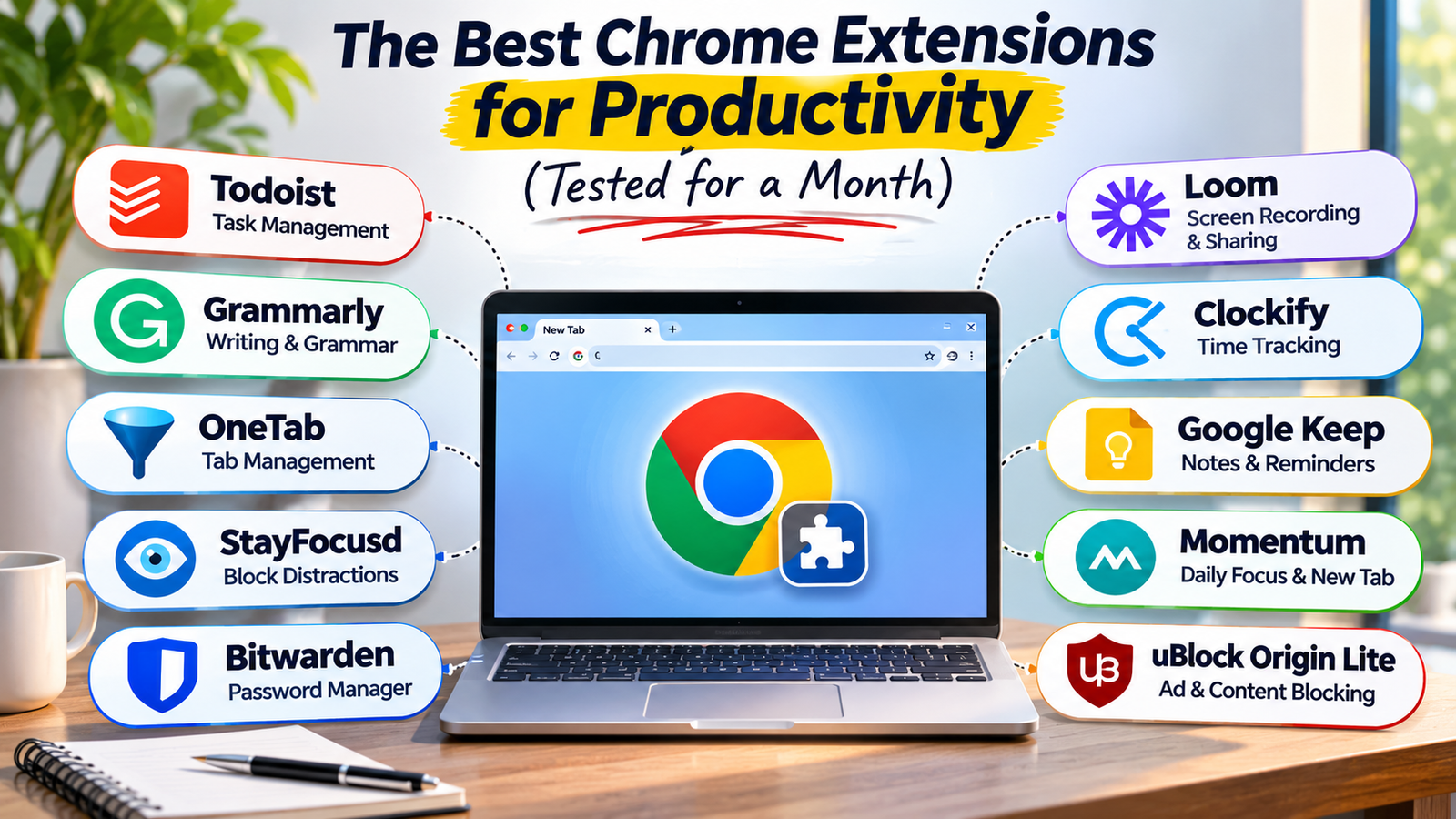
10 Chrome Extensions Worth Adding to Your Workflow
1. Todoist: Best for capturing tasks
- Useful for: Freelancers, project managers and anyone who regularly saves work to do later.
- Limitation: Advanced filters and collaboration features may require a paid plan.
2. Grammarly: Best for writing and editing
- Useful for: Content writers, business owners and professionals who write throughout the day.
- Limitation: Suggestions can occasionally change the intended tone. Review edits rather than accepting every recommendation.
3. OneTab: Best for managing too many tabs
- Useful for: Researchers, students, marketers and people working on multiple projects.
- Limitation: It organises tabs rather than replacing a proper bookmarking or knowledge-management system.
4. StayFocusd: Best for controlling distractions
- Useful for: Remote workers and anyone who loses focus on social media or entertainment websites.
- Limitation: It requires consistent settings and personal discipline. A blocker cannot decide which tasks deserve your attention.
5. Bitwarden: Best for password management
- Useful for: Small businesses, freelancers and people managing multiple work accounts.
- Limitation: Protect your master password and enable two-step verification. A password manager still needs sensible account security.
6. Loom: Best for explaining work without another meeting
Loom records your screen, camera and microphone so you can explain a process or share feedback through a video link. It is useful for product demonstrations, client updates and internal walkthroughs.
- Useful for: Agencies, remote teams, trainers and customer-support teams.
- Limitation: Free-plan recording and storage limits apply. Avoid recording confidential information without permission.
7. Clockify: Best for tracking working hours
- Useful for: Consultants, freelancers and agencies.
- Limitation: Tracking every small activity can become administrative work. Use it for projects where time data helps with billing or planning.
8. Google Keep: Best for quick notes
- Useful for: People who frequently collect research, reminders and quick ideas.
- Limitation: It is better for lightweight notes than detailed project documentation or large research libraries.
9. Momentum: Best for daily focus
- Useful for: People who want a simple daily focus routine.
- Limitation: It is more of a focus aid than a full task manager. Some additional features require a subscription.
10. uBlock Origin Lite: Best for cleaner browsing
- Useful for: Researchers and professionals who spend hours browsing content-heavy websites.
- Limitation: It does not block every advertisement or tracker, and some websites may need adjusted settings.
Quick Comparison: Which Extension Should You Install?
| Extension | Best use | Free option |
|---|---|---|
| Todoist | Task management | Yes |
| Grammarly | Writing assistance | Yes |
| OneTab | Tab organisation | Yes |
| StayFocusd | Website blocking | Yes |
| Bitwarden | Password management | Yes |
| Loom | Screen recording | Yes, with limits |
| Clockify | Time tracking | Yes |
| Google Keep | Notes and reminders | Yes |
| Momentum | Daily focus | Yes |
| uBlock Origin Lite | Content blocking | Yes |
What a Month-Long Productivity Evaluation Should Measure
Rather than installing all ten extensions on the first day, introduce them according to the problem you want to solve. A practical 30-day evaluation can look like this:
- Week 1 – Organisation: Use Todoist, OneTab and Google Keep. Check whether fewer tasks and research links get lost.
- Week 2 – Focus: Add StayFocusd and Momentum. Observe whether website restrictions help you protect focused working periods.
- Week 3 – Work quality: Use Grammarly, Loom and Clockify. Review writing corrections, communication time and project tracking.
- Week 4 – Security and browsing: Add Bitwarden and uBlock Origin Lite. Review login convenience, permissions and browsing experience.
Track three things: time spent switching between tools, repetitive tasks completed and interruptions during focused work. The purpose is not to collect extensions but to identify which ones make a measurable difference to your routine.
Are Chrome Extensions Safe to Install?
Productivity should never come at the cost of account security. Some extensions need permission to read website content to perform their functions. Before installing one, check its developer, recent updates, user reviews and requested permissions.
Avoid installing duplicate extensions that perform the same task. Too many add-ons can clutter the browser, introduce compatibility issues and increase the number of third parties with access to browsing information. For work accounts, follow your company’s security policy and avoid recording or uploading confidential information without approval.
Chrome Extensions for Productivity: Final Verdict
The best Chrome extensions for productivity are not necessarily the most feature-rich ones. Todoist can simplify task capture, OneTab can reduce tab clutter, Grammarly can improve everyday writing, and Bitwarden can make account management easier.
Start small, evaluate the results and remove anything that does not add value. A cleaner browser and a more organised workflow are far more useful than a toolbar filled with tools you rarely open.
Chrome Extensions for Productivity: FAQs
1. Which Chrome extension is best for productivity?
It depends on your biggest challenge. Todoist is useful for tasks, OneTab for tab overload, Grammarly for writing and StayFocusd for limiting distractions.
2. Are Chrome productivity extensions free?
Many offer free versions, including Todoist, OneTab, Bitwarden and Google Keep. Some advanced features, storage limits and collaboration options require paid subscriptions.
3. Do Chrome extensions slow down the browser?
Some extensions consume additional memory or processing resources. Installing only the tools you regularly use can help keep your browser manageable.
Also Read: How to Cut Your Grocery Bill by 30% Without Coupons