
How to Protect Your Privacy Online: A 30-Minute Setup Guide
How to Protect Your Privacy Online: Follow this 30-minute guide to secure your accounts, improve browser privacy, manage app permissions, and protect personal data.

The internet knows everything about you. Every search query, every purchase, every location ping paints a surprisingly accurate digital portrait, which is then bought, sold, and used to influence your behavior. If that makes you uneasy, it should. But taking back control doesn’t require being a tech wiz or disconnecting entirely. This 30-minute guide will show you exactly how to protect your privacy online, with simple, effective steps you can take right now.
Let’s start with a crucial truth: complete anonymity online is a myth. However, you can significantly reduce your digital footprint and stop being such an easy target for data miners. In 2023 alone, there was a 78% increase in data breaches, exposing the personal information of millions. From invasive targeted advertising to identity theft, the risks are real and growing. The most alarming part? We voluntarily hand over much of this data. A recent study revealed that popular free apps can share your data with an average of 100+ distinct third parties. Your location history, contacts, and browsing habits are up for grabs. Learning how to protect your privacy online isn’t just about avoiding annoying ads; it’s about regaining your digital autonomy and securing your personal information.
Phase 1: Browser Basics (10 Minutes)
Your web browser is your primary window to the online world, and often, it’s also the biggest leak in your data bucket. The default settings in popular browsers like Chrome or Edge prioritize convenience (and Google’s data collection) over your privacy. Here’s how to fix it:
1. Tighten Browser Settings:
-
Firefox: The most privacy-friendly major browser. Go to settings > privacy & security. Set “Enhanced Tracking Protection” to Strict. This blocks social media trackers, cross-site cookies, and cryptominers.
-
Brave: Built on Chromium but strips out Google’s tracking code. Out-of-the-box privacy is excellent. Just ensure the “Brave Shields” are active.
-
Chrome: If you must use it, go to settings > privacy & security. Under “Third-party cookies,” select ” Block third-party cookies in Incognito mode” or (Block all third-party cookies). Turn off “Allow Google to sign you in.” Under “Ad privacy,” disable all topics.
2. Install Privacy-Enhancing Extensions (Essential): These are like armor for your browser. You only need a couple, but they are crucial.
-
uBlock Origin: The absolute gold standard for content blocking. It’s not just an ad blocker; it efficiently blocks trackers, malware domains, and annoying scripts, all without killing your browser’s performance. It’s light, open-source, and verified by countless security audits. It’s truly an essential tool in understanding how to protect your privacy online. Don’t install generic “AdBlock” extensions, many of which are paid by companies to allow their ads through.
-
Privacy Badger: Developed by the Electronic Frontier Foundation (EFF), it automatically learns to block invisible trackers that don’t respect your browser’s “Do Not Track” signal. It’s an intelligent tool that complements uBlock Origin perfectly.
3. Choose a Private Search Engine: Google tracks and logs every single one of your searches. It’s how they build their targeted ad profile. Stop feeding the machine. Use DuckDuckGo or Startpage. They don’t track your searches, don’t store your IP address, and give you unfiltered results. The quality is excellent, and you can switch the default search engine in your browser’s settings in 30 seconds.
Phase 2: Mobile Cleanliness (10 Minutes)
Your smartphone tracks your location, contacts, and daily habits. Secure it with these three steps:
1. Clean Up App Permissions:
-
iPhone: Go to Settings > Privacy & Security > Permission Manager. Revoke non-essential permissions (Camera, Mic, Contacts). Under Settings > Privacy & Security > Tracking, turn OFF “Allow Apps to Request to Track.”
-
Android: Go to Settings > Privacy > Permission Manager. Limit permissions strictly, setting location access to “Only while using the app.”
2. Audit Location History:
-
Google Maps: Open app > Profile > Your Timeline > Menu (…) > Settings and privacy. Turn OFF “Location History” and enable auto-delete (3 months).
-
iPhone: Go to Settings > Privacy & Security > Location Services > System services. Turn OFF “Significant Locations.”
3. Switch to Private Messaging:
-
Ditch unencrypted SMS. Use Signal for fully end-to-end encrypted chats, calls, and media sharing.
Phase 3: Online Accounts & Essential Setup (10 Minutes)
Lock down your main accounts to build a strong defense across all web services:
1. Enable Multi-Factor Authentication (MFA/2FA):
-
Turn on 2FA for your email, bank, social media, and password manager.
-
Use authenticator apps like Aegis (Android), Google Authenticator, or Microsoft Authenticator instead of vulnerable SMS codes.
2. Use a Password Manager:
-
Stop reusing passwords. Use Bitwarden (free, open-source) to store and generate unique, strong passwords across devices.
3. Review Account Privacy Settings:
-
Google: Visit myaccount.google.com > Data and privacy. Run the “Privacy Checkup” and turn OFF “Web & App Activity” and “YouTube History.”
-
Facebook: Go to Settings & Privacy > Settings > Privacy Checkup to limit post visibility and app data sharing.
Summary Table: Your 30-Minute Privacy Plan
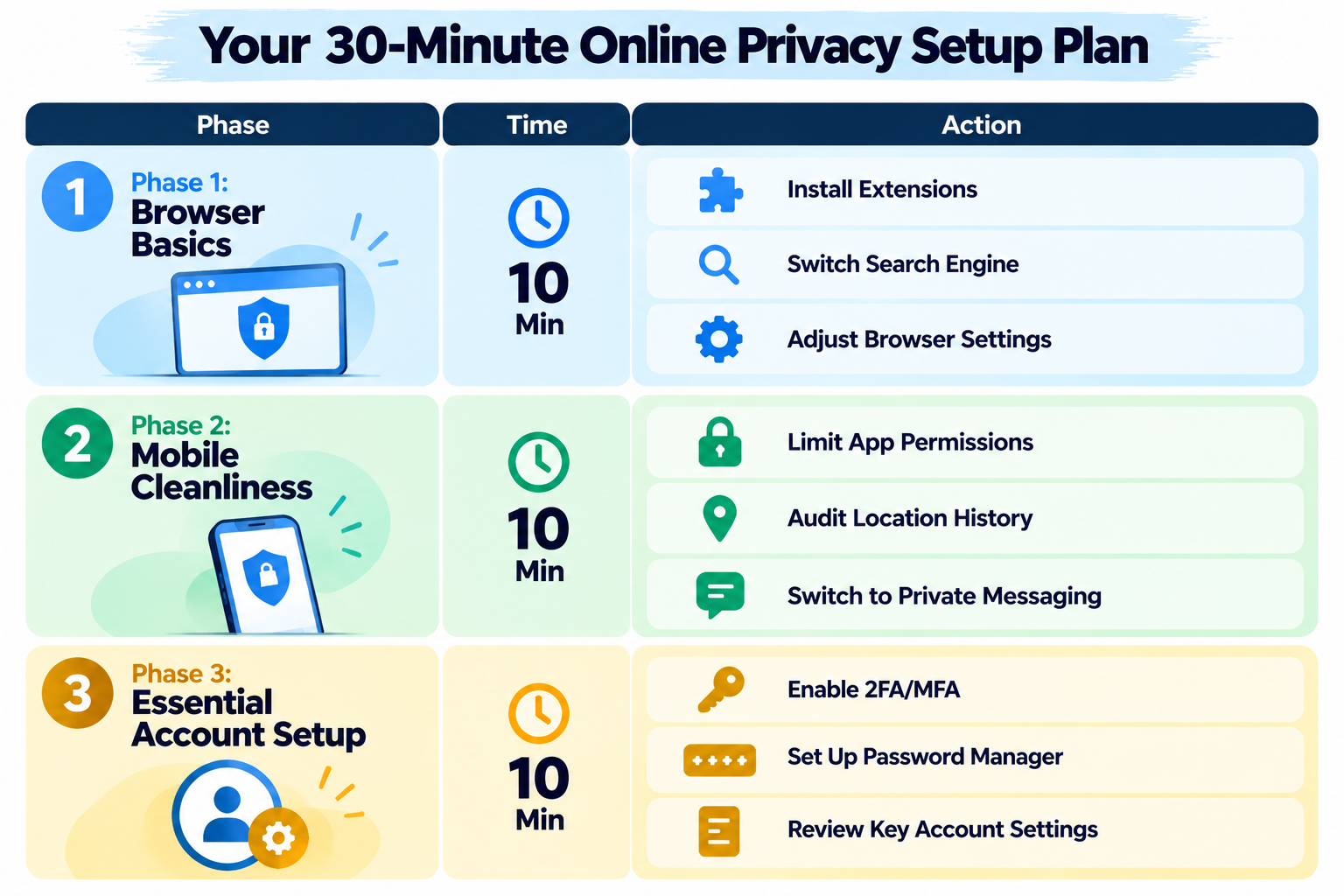
| Phase | Time | Action | Recommended Tools/Settings |
| Phase 1: Browser Basics | 10 Min | Install Extensions | uBlock Origin, Privacy Badger |
| Switch Search Engine | DuckDuckGo, Startpage | ||
| Adjust Browser Settings | Strict Tracking Protection (Firefox/Brave), Block third-party cookies | ||
| Phase 2: Mobile Cleanliness | 10 Min | Limit App Permissions | Deny non-essential access (Location, Camera, Contacts) |
| Audit Location History | Turn off Google Location History, iPhone “Significant Locations” | ||
| Switch to Private Messaging | Signal | ||
| Phase 3: Essential Account Setup | 10 Min | Enable 2FA/MFA | Aegis, Google/Microsoft Authenticator (avoid SMS) |
| Set Up Password Manager | Bitwarden | ||
| Review Key Account Settings | myaccount.google.com > Data & privacy |
Conclusion
Congratulations! By spending just 30 minutes following these simple, verifiable steps, you’ve made significant progress in taking back your digital autonomy. You’ve stopped your browser from constantly leaking your browsing data, locked down your phone’s most sensitive information, secured your critical accounts, and most importantly, you’ve learned how to protect your privacy online. This isn’t just about being paranoid; it’s about making a conscious choice to limit the invasive reach of data miners and corporate surveillance. Your online privacy is worth fighting for, and as you can see, it doesn’t have to be a full-time job. This simple guide on how to protect your privacy online is just the beginning. Stay curious, stay vigilant, and continue to prioritize your digital sovereignty.
Frequently Asked Questions (FAQs)
1. Is complete privacy online really possible?
No, complete privacy is a myth. Total anonymity is extremely difficult to achieve and maintain. However, you can significantly reduce your data footprint and stop making yourself such an easy target for surveillance and data miners. The goal is risk reduction, not perfection.
2. Is using a free VPN safe?
Generally, no. Running a VPN infrastructure is expensive. If they’re not charging you, they are almost certainly monetizing your data, often by selling your browsing history. When a service is free, you are the product. Paid, reputable VPNs like Mullvad or Proton VPN are much safer.
3. Why is everyone talking about uBlock Origin?
Because it’s the most effective, efficient, and trusted content blocker available. It’s open-source, light on system resources, and blocks not just ads but also a wide range of trackers and scripts. It’s not just an ad blocker; it’s a foundational privacy tool.
Also Read: Termly Review: Is It Worth Using for Website Privacy Compliance?