
The Best Free PDF Editors That Don’t Watermark Your Files
Best Free PDF Editors: Compare free PDF tools for text editing, OCR, signatures, page management, conversions, privacy, and watermark-free exports.

PDFs remain one of the most widely used formats for contracts, invoices, applications, reports, forms, and business documents, but editing them can quickly become frustrating when a supposedly free tool adds a watermark at export or limits basic features behind a subscription. The best free PDF editors in 2026 are no longer limited to simple annotation. Several now support text editing, page management, signatures, OCR, conversions, forms, and document security without putting a branding mark on the finished file. PDFgear, for example, says its free editor has no watermarks, registration requirements, or usage limits, while PDF24 offers a completely free Windows desktop toolkit with no restrictions.
The important distinction is that “PDF editing” can mean very different things. Adding a text box to a PDF is easy. Changing the original text, preserving formatting, editing scanned documents, or rearranging complex layouts is a different task altogether. That is why this list focuses on the best free PDF editors that can produce a clean PDF without a forced watermark.
1. PDFgear: Best Overall Free PDF Editor
PDFgear is one of the strongest choices for users who want a genuinely free PDF editor rather than a trial version disguised as free software.
Its online editor allows users to add text, images, shapes, comments, signatures, highlights, and drawings, as well as reorder, rotate, copy, delete, and insert pages. Edited PDFs can be downloaded without a watermark. The online version supports files up to 100MB, while the desktop software offers more advanced editing and no stated file-size limit.
The desktop version is particularly useful when the job involves changing existing PDF text, rather than simply placing new text over it. It also includes OCR, conversion tools, forms, signatures, and AI-assisted PDF features.
Best for: Everyday editing, forms, text changes, conversions, and users who want an all-in-one option.
2. PDF24 Creator: Best for Unlimited Offline PDF Work
PDF24 Creator is particularly appealing to Windows users who do not want to upload sensitive documents to an online service.
The software is completely free for personal and commercial use and works offline, keeping files on the user’s computer. It can merge, split, rotate, extract, compress, convert, sign, OCR, protect, and modify PDFs. It also supports batch processing and PDF creation from Word, Excel, and image files.
This is where PDF24 differs from many browser-based editors. There is no daily task allowance on the desktop version, making it a practical choice for people who process PDFs regularly.
Best for: Windows users, business documents, bulk PDF tasks, and privacy-conscious workflows.
3. Sejda PDF Editor: Best for Quick Online Text Editing
Sejda is a good option when installing software is unnecessary, and the PDF needs a relatively straightforward edit in a browser.
Its editor can add and modify text, move or delete pages, highlight content, insert shapes, and add signatures. The free service does have restrictions: Sejda currently limits free users to three tasks per day on its desktop software and imposes size, page, and processing limits on online tasks.
The important part for this list is that Sejda’s free output does not carry a forced watermark. Its current pricing information explicitly states that free users receive watermark-free output.
Best for: Occasional browser-based editing when installation is not practical.
4. LibreOffice Draw: Best Open-Source Desktop Alternative
LibreOffice Draw is not marketed primarily as a PDF editor, but it can be surprisingly useful for editing PDF content.
- Draw lets users work with text and graphic objects and export documents directly to PDF. LibreOffice itself is a free, open-source office suite available across major desktop platforms.
It is most useful when the PDF has a relatively straightforward layout.
- Complex PDFs with unusual fonts, forms, layered graphics, or intricate formatting may not reproduce perfectly when opened and edited.
- There is also no commercial PDF-editor watermark being added simply because the document was exported through LibreOffice.
- Users have direct control over the PDF export settings, including security and other output options.
Best for: Desktop users who already use LibreOffice and want a free, open-source solution.
5. Stirling PDF: Best for Privacy and Self-Hosting
Stirling PDF is an interesting option for technical users, businesses, and organizations that want greater control over document processing.
It provides tools for PDF editing, annotations, OCR, redaction, signing, conversion, merging, splitting, compression, metadata management, and more. It can run locally, through desktop applications, or as a self-hosted service.
Its local-only desktop mode can process files on the user’s computer, while self-hosted installations allow organizations to keep processing within their own infrastructure.
Best for: Privacy-sensitive users, IT teams, developers, and organizations wanting self-hosted PDF workflows.
Best Free PDF Editors Compared
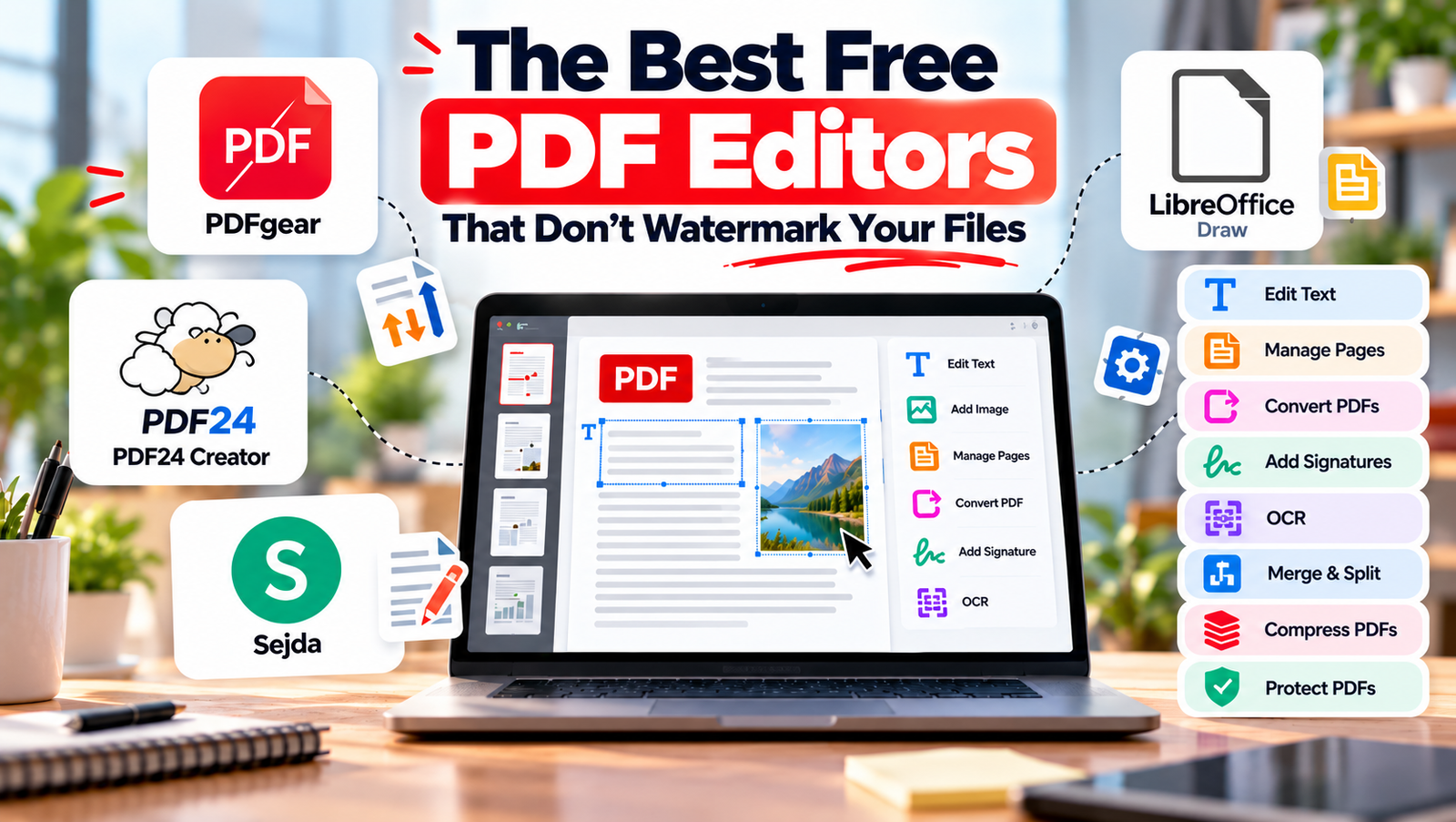
| PDF Editor | Best For | Watermark-Free | Main Limitation |
|---|---|---|---|
| PDFgear | Overall PDF editing | Yes | Online version has file-size limits |
| PDF24 Creator | Offline Windows use | Yes | Windows desktop focus |
| Sejda | Quick online editing | Yes | Free usage limits |
| LibreOffice Draw | Open-source desktop editing | Yes | Complex PDFs may lose formatting |
| Stirling PDF | Privacy and self-hosting | Yes | Better suited to technical users |
What Should You Choose?
- For most people, PDFgear is the easiest starting point. It combines a simple interface with capabilities that go well beyond adding comments or highlighting text. Its free, watermark-free export is also a major advantage.
- If privacy is the priority, PDF24 Creator is hard to overlook on Windows because documents can remain entirely offline.
- Sejda makes more sense when only occasional browser-based editing is needed. Its limitations are noticeable if several PDFs need processing every day.
- LibreOffice Draw is worth considering when an open-source desktop environment is preferred, while Stirling PDF stands out for people who need local or self-hosted processing.
The key is to look beyond the word free. Check whether the tool allows clean export, whether existing text can actually be edited, how large the file can be, whether OCR is included, and whether your documents leave your computer.
Best Free PDF Editors: FAQs
1. Which free PDF editor is best for editing existing text?
PDFgear is one of the strongest choices because its desktop application supports direct editing of existing PDF text while preserving formatting.
2. What is the best choice for confidential PDFs?
An offline or self-hosted editor is generally preferable when documents contain sensitive information. PDF24 Creator processes files locally, while Stirling PDF supports local and self-hosted deployment.
3. Can a free PDF editor replace Adobe Acrobat?
For many everyday tasks, yes. Editing text, adding annotations, signing, merging, splitting, converting, and managing pages can be handled by free tools. Professional publishing, advanced document workflows, and enterprise-specific features may still justify a paid solution.