
How to Add Online Certificates to Your LinkedIn (and Make Them Count)
Learn how to add online certificates to your LinkedIn profile, include verification links, showcase skills, and make your certifications stand out to recruiters.

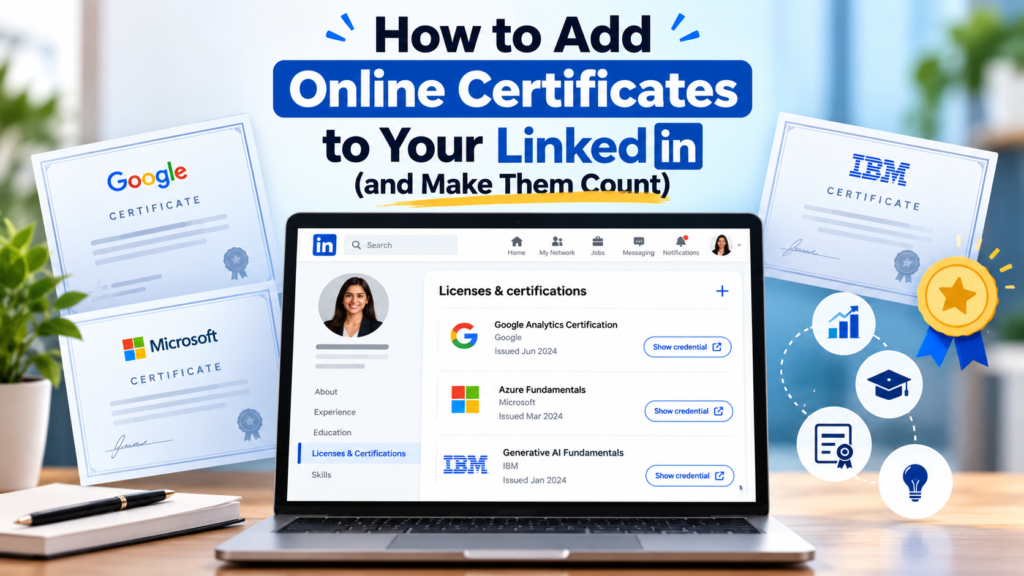
Completing an online course is a valuable step in professional development, but earning a certificate is only half the job. If recruiters, hiring managers, and potential clients cannot see what you have learned, the achievement may have little impact on your professional visibility. This is where LinkedIn becomes useful. Knowing how to add online certificates to your LinkedIn profile can help you showcase newly acquired skills, establish credibility, and make your professional experience more discoverable.
The growing importance of digital credentials reflects a shift in recruitment. According to Accredible’s 2025 State of Credentialing Report, 91% of HR and talent leaders actively look for digital credentials when reviewing candidates, while 86% say they are more likely to interview someone whose digital credential demonstrates a relevant skill. Interestingly, 63% have hired a candidate, at least partly, because of a digital credential.
These numbers highlight an important point: certificates can influence hiring decisions, but their value depends on their relevance, credibility, and visibility. Simply collecting certificates is not enough. You need to present them strategically.
Here is how to add your online certifications to LinkedIn and make them work towards your career goals.
Why Should You Add Online Certificates to Your LinkedIn Profile?
Your LinkedIn profile is more than an online resume. It is a professional portfolio that communicates your expertise, interests, and career development.
Adding relevant certifications offers several advantages:
- Demonstrates practical knowledge: Certifications show that you have invested time in learning specific tools, technologies, or professional skills.
- Improves professional credibility: Credentials from recognised institutions and industry platforms provide additional evidence of your capabilities.
- Supports career transitions: If you are moving into a new industry or role, relevant certifications can demonstrate your commitment to developing the required skills.
- Improves profile discoverability: Adding relevant skills and credentials helps communicate your expertise to recruiters and professional connections.
- Shows continuous learning: Regularly updating your profile signals that you are keeping pace with changing industry requirements.
LinkedIn’s 2025 Workplace Learning Report also found that 91% of learning and development professionals believe continuous learning is more important than ever for career success.
How to Add Online Certificates to Your LinkedIn Profile
LinkedIn provides a dedicated section called Licenses & Certifications where you can display your completed courses, professional credentials, and online certifications.
Follow these steps:
Step 1: Open Your LinkedIn Profile
Log in to LinkedIn using your desktop or mobile application.
Click on the Me icon at the top of your homepage and select View Profile. This will take you to your personal LinkedIn profile.
Step 2: Find the Add Profile Section Option
At the top of your profile, locate the Add profile section button.
Click it and navigate to:
Recommended → Add licenses & certifications
LinkedIn will open a form where you can enter your certification details.
Step 3: Enter Your Certification Details
Fill in the information carefully. Each field contributes to making your credential identifiable and verifiable.
Here is what you need to enter:
| Field | What You Should Enter |
|---|---|
| Name | Exact name of the course or certification |
| Issuing Organization | Institution or platform that issued the certificate |
| Issue Date | Month and year you completed the course |
| Expiration Date | Expiry date, if applicable |
| Credential ID | Unique identification number provided by the issuer |
| Credential URL | Direct verification link to your certificate |
For example, if you completed a Google Analytics certification, enter the exact certification title and select the appropriate issuing organization from LinkedIn’s suggestions.
Important: Always select the correct issuing organisation from LinkedIn’s dropdown rather than manually entering a similar name. This helps display the organisation’s official logo alongside your credential.
Step 4: Add the Certificate Verification Link
This is one of the most important steps.
If your learning platform provides a digital certificate URL, copy the direct link and paste it into the Credential URL field. A verification link allows recruiters and other profile visitors to check whether your certificate is authentic. If the issuer provides a Credential ID, include that as well.
Avoid uploading a screenshot or inserting a general homepage link when a dedicated certificate verification URL is available.
Step 5: Save and Review Your Certification
Once all the details are entered, click Save.
Your certificate will now appear under the Licenses & Certifications section of your profile. Repeat the process for other relevant certifications. You can also edit or delete existing entries whenever your information changes.
The same process is available through LinkedIn’s mobile application.
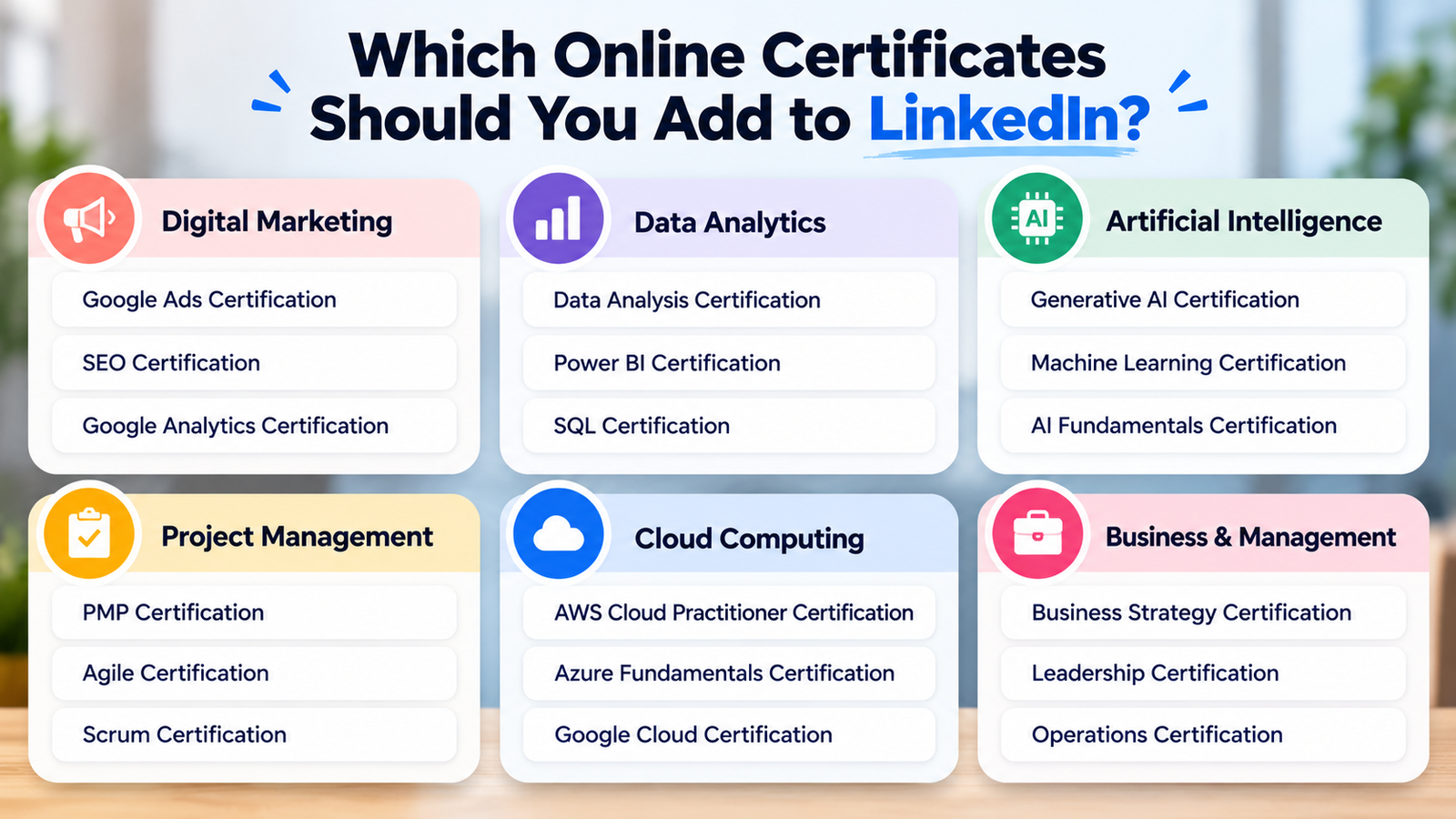
How to Make Your LinkedIn Certificates Count
Adding a certificate is straightforward. Making it contribute to your professional reputation requires a little more thought.
1. Connect certifications with your skills section
When you add a certification in data analytics, for example, ensure that relevant skills such as SQL, Excel, Power BI, or data visualisation are also reflected in your Skills section, provided you genuinely possess them.
2. Share your achievement with your network
Consider creating a LinkedIn post when you complete an important certification. Mention what you learned, why you pursued it, and how you intend to apply the knowledge.
Avoid simply posting a certificate image with a generic congratulatory caption. A brief learning takeaway makes the announcement more meaningful.
3. Add context to your About section
If a certification represents an important part of your professional development, mention it in your About section. Explain how the knowledge connects with your current role or future career interests.
4. Prioritise quality over quantity
Ten unrelated certificates will not necessarily make your profile stronger than three relevant, recognised credentials. Recruiters are interested in what you can contribute, not just how many courses you have completed.
5. Keep your profile updated
Whenever you complete a new course, update your profile. Remove outdated or irrelevant entries where necessary, and check that certificate links still work.
Common Mistakes to Avoid When Adding LinkedIn Certifications
Even a genuine certification can lose its impact if presented incorrectly.
- Adding certificates without checking the issuing organisation’s authenticity.
- Entering incorrect course titles or completion dates.
- Leaving out available Credential IDs and verification URLs.
- Listing beginner-level courses that have little relevance to your professional goals.
- Treating certificates as substitutes for practical experience.
- Adding the same course under multiple profile sections without a clear reason.
Remember, a certificate demonstrates learning, but your projects, work experience, and ability to apply those skills demonstrate competence.
Frequently Asked Questions (FAQs)
1. Can I add free online certificates to LinkedIn?
Yes. LinkedIn allows you to add free online certifications, provided you have genuinely completed the course and received a certificate or credential from the issuing organisation. The platform does not require the certification to be paid.
2. Where do online certificates appear on LinkedIn?
Online certificates appear in the Licenses & Certifications section of your profile. You can access this section through Add profile section under the Recommended category.
3. Can I add a certificate without a Credential ID?
Yes. The Credential ID field is optional. If your certificate provider does not issue a unique identification number, you can leave it blank and provide the verification URL if available.
Your professional growth should be visible, not hidden in a folder of downloaded certificates. Understanding how to add online certificates to your LinkedIn profile is a simple but important step towards building a stronger professional presence.
Also Read: Airwallex Review: Best Business Account for International Payments?