
VPN Speed Explained: Why Your Connection Slows and How to Fix It
VPN speed is often blamed when a connection suddenly feels slower, but the VPN itself is only one part of the equation.

VPN speed is often blamed when a connection suddenly feels slower, but the VPN itself is only one part of the equation. Your original internet connection, distance to the VPN server, encryption method, server congestion, Wi-Fi quality and even the website you are accessing can all affect performance. A fast 500 Mbps broadband connection, for example, does not guarantee 500 Mbps through a VPN. Encryption adds processing, traffic takes a longer route, and the VPN server becomes another point between your device and the internet. The good news is that a large slowdown is not inevitable. With the right server, protocol and network settings, most users can recover much of their normal performance.
What Actually Happens When You Use a VPN?
Without a VPN, your device normally connects to your internet service provider and then to the website or service you are using.
A VPN adds an encrypted tunnel between your device and a VPN server. Your traffic travels through that server before reaching its destination.
That extra journey creates three main sources of slowdown:
- Encryption: Your device and the VPN server must encrypt and decrypt traffic.
- Distance: Data may travel hundreds or thousands of extra kilometres.
- Server load: Your connection shares the VPN infrastructure with other users.
There is also an important distinction between speed and latency. Speed affects how quickly large files or videos can transfer, while latency measures the delay before data starts moving. A VPN can leave your download speed reasonably high while noticeably increasing latency, which becomes more obvious during gaming, video calls and remote desktop sessions.
The Biggest Causes of VPN Slowdowns
| Cause | What You May Notice | What Usually Helps |
|---|---|---|
| Distant server | Higher latency | Choose a nearby server |
| Server congestion | Unstable speeds | Change server |
| Heavy encryption | Lower throughput | Try a modern protocol |
| Weak Wi-Fi | Slow connection everywhere | Improve Wi-Fi |
| ISP limitations | Low speed before VPN | Check baseline speed |
| VPN app settings | Unexpected slowdown | Review protocol/settings |
| Device limitations | Slow performance on one device | Test another device |
How to Fix VPN Slowdowns
1. Check Your Normal Speed First
Before changing anything inside your VPN app, switch the VPN off and run a speed test.
This gives you a baseline.
If your internet connection delivers only 80 Mbps without the VPN, there is little point expecting 300 Mbps while connected to one. Likewise, if you normally receive 500 Mbps but get only 40 Mbps through the VPN, you have a genuine performance problem worth investigating.
Run the test several times at different times of day. Internet speeds fluctuate because of Wi-Fi interference, household traffic and ISP congestion.
2. Choose a Nearby Server
The simplest solution is often the most effective.
If you are physically located in New York and connect to a VPN server in Singapore, your traffic has a much longer journey than it would through a server in New York, Chicago or another nearby location.
You do not always need the geographically closest server, because a nearby server can be congested. Try two or three locations in the same region and compare their results.
For streaming or browsing, a nearby server is usually preferable unless you specifically need an IP address from another country.
3. Change the VPN Protocol
The protocol determines how your VPN connection is established and how data moves through the encrypted tunnel. Different protocols can produce noticeably different performance.
Modern options such as WireGuard are designed with speed and efficiency in mind and are now widely supported by commercial VPN providers. OpenVPN remains popular because of its maturity and flexibility, but it can perform differently depending on the device and configuration.
If your VPN application offers a protocol selection, test the available options rather than assuming the default is optimal.
This is one of the easiest ways to improve VPN speed without changing your internet plan.
4. Stop Connecting to an Overloaded Server
A VPN provider might advertise thousands of servers, but that does not mean every server will perform equally well.
During busy periods, a popular server can become congested. You may notice slow downloads, buffering or inconsistent performance even though your normal internet connection is working perfectly.
If the application displays server load, use it as a guide. Otherwise, connect to another nearby server and compare.
Do not automatically choose a server labelled “fastest” either. Test it yourself. Your physical location, ISP and network route can produce different results from another user’s experience.
5. Check Whether Wi-Fi Is the Real Problem
Sometimes the VPN gets blamed for a problem that already exists on the local network.
- Try connecting your computer directly to the router with Ethernet. If performance improves dramatically, your Wi-Fi is probably contributing to the slowdown.
- You can also test from a different room, move closer to the router or switch between the 2.4 GHz and 5 GHz/6 GHz bands where supported.
- If the connection is slow with the VPN turned off, fixing the local network should come before changing VPN providers.
6. Turn Off Features You Don’t Need
Some VPN applications include additional privacy and security functions such as malware filtering, tracker blocking, double VPN routing or specialised servers.
These can be useful, but certain features deliberately send your traffic through additional processing or servers.
For ordinary browsing, you generally do not need a multi-hop connection simply to maximise performance. If your VPN has several advanced routing options enabled, temporarily disable them and compare the result.
The objective is not to turn off security unnecessarily. It is to understand which features are affecting performance.
7. Test Different Websites and Services
A slow VPN connection does not always mean the VPN is slow.
The website you are visiting may have overloaded servers, bandwidth limitations or a poor route to your VPN provider. A video platform might work perfectly while a particular download server performs badly.
Test several destinations. Try a speed-test service, a major website and the service that is actually giving you trouble.
If only one website is slow, replacing your VPN may not solve the problem.
8. When Changing VPN Providers Makes Sense
If you have tested nearby servers, different protocols, your Wi-Fi and multiple destinations, and the connection remains dramatically slower, the provider may simply have poor infrastructure for your location.
Look beyond marketing claims such as “the world’s fastest VPN.” What matters is how the service performs from your country, ISP and devices.
Before subscribing for a long period, use a provider’s trial or money-back period to test several servers at different times of day. Download a large file, stream high-resolution video and run latency tests rather than relying on a single speed-test result.
Practical Fixes Worth Trying
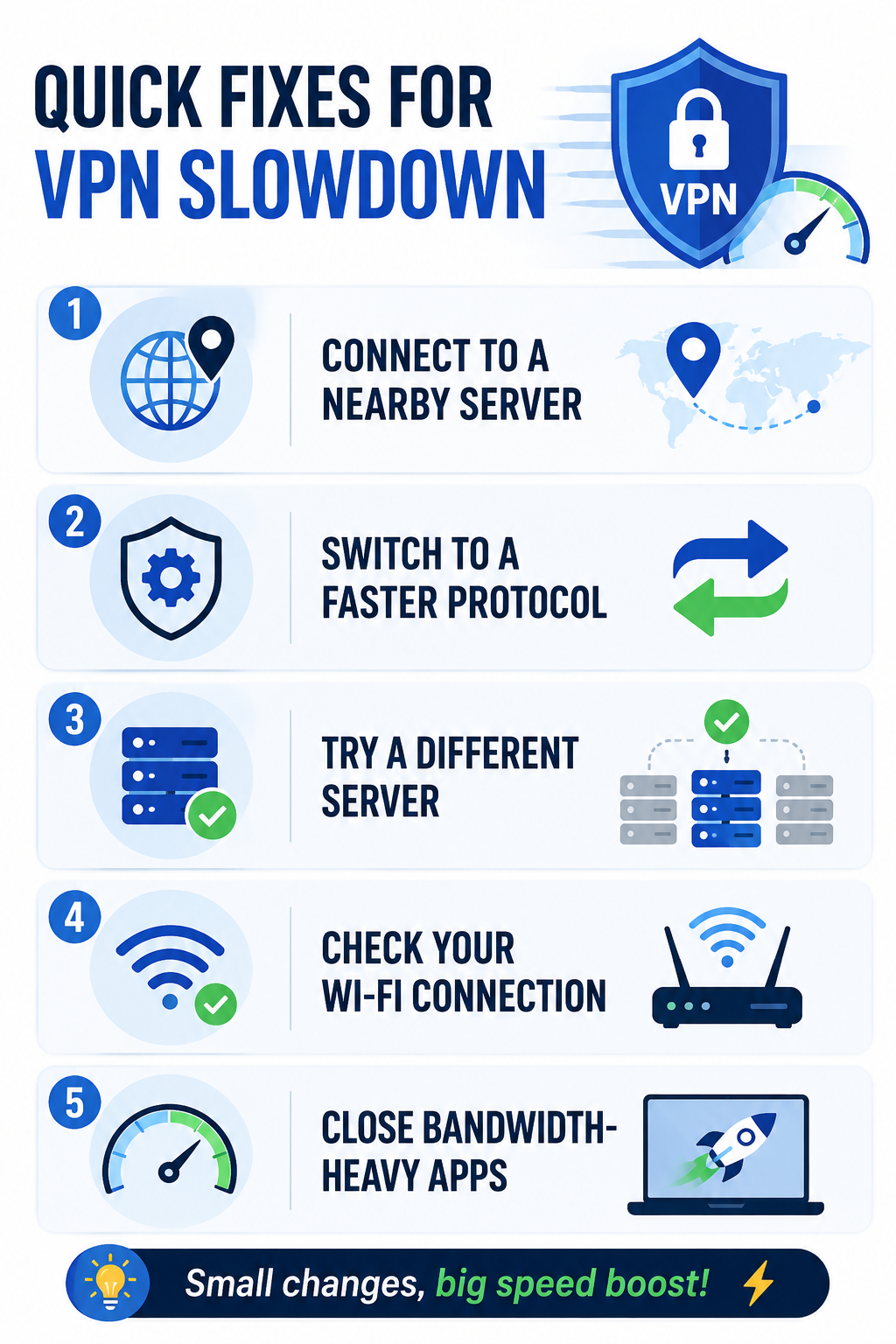
If your VPN speed has suddenly dropped, work through these steps in order:
- Test your internet without the VPN.
- Restart the VPN connection.
- Switch to a nearby server.
- Try another server in the same city or country.
- Change from a slower protocol to WireGuard if available.
- Test Ethernet instead of Wi-Fi.
- Close bandwidth-heavy applications.
- Disable unnecessary multi-hop or advanced routing features.
- Update the VPN application.
- Test again at a different time.
This process is more useful than immediately uninstalling the VPN because it helps identify where the slowdown actually originates.
Does a Faster VPN Always Mean Better Privacy?
No. Performance should not be evaluated separately from privacy and security.
A provider might deliver excellent speeds while offering weak privacy practices, questionable logging policies or limited security controls. Conversely, a privacy-focused VPN may sacrifice some performance because of its infrastructure or security configuration.
The sensible approach is to find a service that provides the security features you need while delivering acceptable performance for your particular connection.
Frequently Asked Questions
1. How much speed does a VPN normally reduce?
There is no universal percentage. The impact depends on your ISP, device, protocol, server distance, congestion and network conditions. A nearby, well-connected server can perform much better than a distant or overloaded one.
2. Why is my VPN fast for browsing but slow for downloads?
Different activities use bandwidth differently. A download can expose throughput limitations that are barely noticeable when loading ordinary webpages. The download server itself may also be limiting your connection.
3. Does VPN location affect speed?
Yes. A distant server generally increases latency and can reduce performance because your data has to travel farther. Nearby servers are usually the better choice when location masking is not your primary requirement.
The most useful way to think about VPN speed is not as a fixed number advertised by a provider, but as the performance you actually receive between your device, VPN server and destination. Start with a baseline, choose nearby infrastructure, test protocols and eliminate local network problems before deciding that the VPN itself is the problem.