
How to Speed Up a WordPress Site: 15 Fixes That Actually Work
A slow website does more than frustrate visitors. It can interrupt purchases, reduce enquiries and make otherwise useful content harder to access. Google’s Core Web Vitals provide clear performance targets: the Largest Contentful Paint (LCP) should be 2.5 seconds or less, Interaction to Next Paint (INP) should be under 200 milliseconds, and Cumulative Layout Shift (CLS) should remain below 0.1 for a good user experience. These measurements focus on loading, responsiveness and visual stability, not just how quickly a homepage appears. If you are researching how to speed up a WordPress site, start by identifying what is slowing it down.
A large hero image, an overloaded page builder, slow hosting, or a plugin making repeated database requests can all create delays. Applying random optimisations may not solve the actual problem. Here are 15 practical fixes worth working through.
15 Ways to Make Your WordPress Website Faster
1. Choose hosting that can handle your traffic
Your hosting server processes WordPress requests, runs PHP and retrieves database information. Cheap shared hosting can become a bottleneck when resources are limited. Look for SSD or NVMe storage, sufficient RAM, modern PHP support and server-side caching. If traffic has grown, consider managed WordPress hosting or a suitable VPS.
2. Install and configure page caching
Without caching, WordPress may repeatedly generate the same page for different visitors. A caching plugin stores a ready-to-serve version, reducing server processing. Options include WP Super Cache, W3 Total Cache and hosting-provided caching. Configure page caching first, then test logged-in areas, forms and shopping cart pages before enabling more advanced features.
3. Resize and compress images
Uploading a 4,000-pixel photograph for a 600-pixel content area wastes bandwidth. Resize images to the dimensions actually required, compress them and use WebP or AVIF where supported. Tools such as ShortPixel, Imagify and EWWW Image Optimizer can automate parts of this process. Avoid compressing so aggressively that product details or text become blurry.
4. Enable lazy loading for below-the-fold images
Images further down a page do not need to load before visitors can see the opening section. Lazy loading delays their download until they approach the screen. WordPress supports native lazy loading for images. However, do not lazy-load the main hero image or another image responsible for your LCP score; it should be discoverable and load promptly.
5. Use a lightweight WordPress theme
Some themes load sliders, animations, icon libraries and scripts even when a page does not need them. Choose a theme built around clean code and the features you actually use. Before switching, test it on a staging site. A redesign is not automatically a performance improvement.
6. Remove plugins you do not need
Every plugin adds code, functionality or maintenance overhead. Deactivate and delete plugins that are unused, duplicated or no longer supported. Do not judge performance by plugin count alone: one poorly written plugin can cause more trouble than several efficient ones. Disable plugins selectively and compare test results.
7. Minify CSS, JavaScript and HTML
Minification removes unnecessary characters from code files, reducing their size. Many optimisation plugins can minify CSS, JavaScript and HTML. Test carefully: aggressive settings can break menus, forms, sliders or page-builder layouts. Keep a backup and enable one optimisation at a time.
8. Reduce unnecessary JavaScript
Chat widgets, pop-ups, analytics, social feeds and marketing tags can delay interaction. Remove scripts that serve no clear purpose. Where appropriate, defer non-critical JavaScript or delay third-party scripts until user interaction. Keep essential scripts such as payment and consent functionality working correctly.
9. Use a Content Delivery Network (CDN)
A CDN serves cached website files from servers closer to visitors. This can reduce loading delays for audiences spread across different locations. Cloudflare and other CDN providers offer options for distributing static assets. Configure DNS and caching carefully, particularly if your site has dynamic content.
10. Upgrade PHP to a supported version
WordPress runs primarily on PHP, so an outdated version can affect both performance and security. Ask your hosting provider which currently supported PHP version is compatible with your theme and plugins. Back up your site and test the upgrade on staging before changing the live environment.
11. Clean up your WordPress database
Revisions, expired transients, spam comments and leftover plugin tables can accumulate over time. Use a reputable database optimisation tool to remove unnecessary records. Take a full database backup first. Avoid deleting tables simply because their names look unfamiliar; some may belong to active plugins.
12. Enable browser caching
Browser caching tells visitors’ browsers how long to keep static files such as images, fonts and CSS. Returning visitors may then reuse stored files instead of downloading everything again. Configure appropriate Cache-Control headers through your host, CDN or caching plugin. Set longer durations for files that rarely change.
13. Optimise fonts and icons
Loading several font families, weights, and icon libraries can add unnecessary requests. Keep only the styles you use, consider serving fonts locally, and use modern formats such as WOFF2. Preload only critical fonts. Always specify fallback fonts to avoid invisible text while files load.
14. Reduce external requests
Embedded videos, maps, social feeds, advertising scripts and third-party widgets can slow a page even when your own server is fast. Replace unnecessary live embeds with lightweight previews, load maps only when needed, and review external services regularly. Each dependency introduces another potential delay.
15. Test, monitor and repeat
Run key pages through Google PageSpeed Insights and test them on mobile as well as desktop. Check the homepage, service pages, product pages and blog posts separately. Compare results before and after each change. Use Search Console’s Core Web Vitals report to understand real-user performance over time.
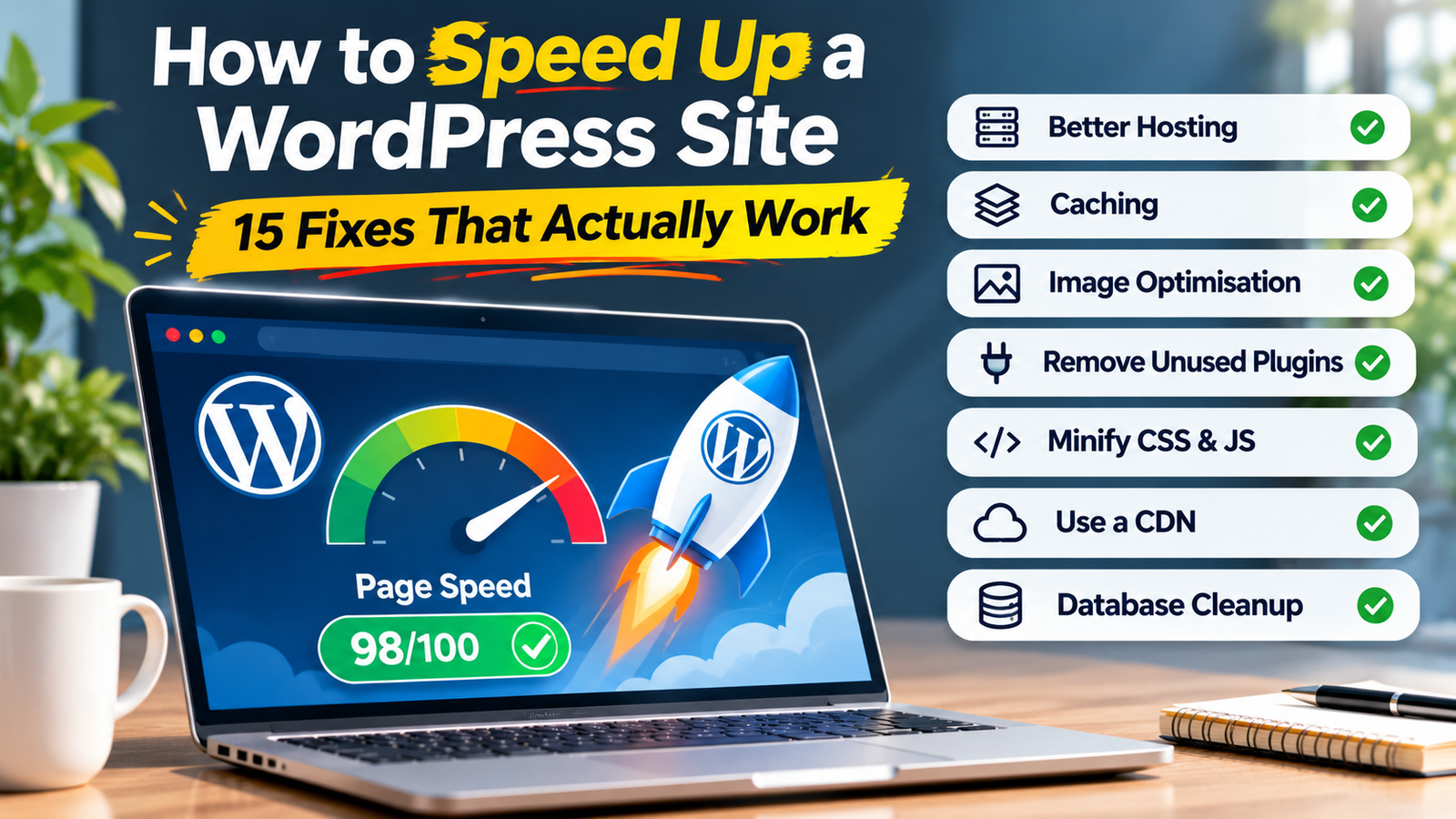
Quick Comparison: Which Fix Should You Prioritise?
| Fix | Main benefit | Priority |
|---|---|---|
| Better hosting | Faster server response | High |
| Page caching | Less server processing | High |
| Image compression | Smaller page downloads | High |
| Lazy loading | Faster initial rendering | High |
| Lightweight theme | Less unnecessary code | High |
| Plugin cleanup | Fewer performance bottlenecks | Medium |
| CSS/JS minification | Smaller assets | Medium |
| CDN | Faster delivery across regions | Medium |
| Database cleanup | Less unnecessary data | Medium |
| Font optimisation | Fewer font requests | Medium |
Priorities depend on your test results. For example, a site with a slow server response needs a different solution from one whose largest image takes several seconds to load.
How to Speed Up a WordPress Site: Final Thoughts
Learning how to speed up a WordPress site is less about installing every optimisation plugin and more about removing the right bottlenecks. Start with hosting, caching and image sizes. Then review scripts, fonts, database activity and external services. Make one change at a time, measure the result and keep a backup. Consistent testing is what turns a one-time speed improvement into a faster, more reliable website.
How to Speed Up a WordPress Site: FAQs
1. Why is my WordPress website slow?
Common causes include limited hosting resources, large images, excessive plugins, unoptimised scripts, poor caching and third-party requests. Use a performance test to identify the main bottleneck before making changes.
2. Which plugin is best for WordPress speed optimisation?
There is no single best option for every website. WP Super Cache and W3 Total Cache offer caching features, while image optimisation plugins such as ShortPixel and Imagify focus on media. Check whether your hosting provider already includes caching before installing another plugin.
3. Does website speed affect SEO?
Yes. Google recommends good Core Web Vitals as part of delivering a strong page experience. Speed alone does not guarantee higher rankings, but poor performance can make a website less useful to visitors.
Also Read: How to Sign Documents Online Legally: E-Signature Laws Explained Simply