
VPN on Your Router: Pros, Cons, and Setup Basics
Learn how a VPN on your router works, its benefits and drawbacks, compatible devices, and step-by-step setup basics for your home network.

A VPN is usually installed on a laptop or phone, but there is another option: configuring it directly on your Wi-Fi router. This changes how devices connect to the internet because traffic from supported devices can pass through an encrypted VPN tunnel without requiring each device to run its own VPN application. Using a VPN on a router can be particularly useful in homes with smart TVs, gaming consoles, smart home devices and multiple users. However, it also changes how your entire network behaves. Internet speed, device compatibility, streaming access and troubleshooting can all be affected.
The important decision is not simply whether a router supports VPN functionality. It is whether your router, VPN provider and internet usage requirements work well together. Here’s what to understand before changing your network setup.
What Does a VPN on Your Router Actually Do?
A router-based VPN usually works as a VPN client. Instead of installing an app on every device, you configure the router to connect to your VPN provider. Devices connected to the router can then send their internet traffic through that VPN connection.
This is different from a VPN server, which allows you to connect remotely to your home network while travelling. The distinction matters because both features may appear under the same VPN menu in your router settings.
For example, ASUS routers with VPN Client or VPN Fusion features can route selected devices through a VPN without requiring individual applications.
The Advantages of Running a VPN at Router Level
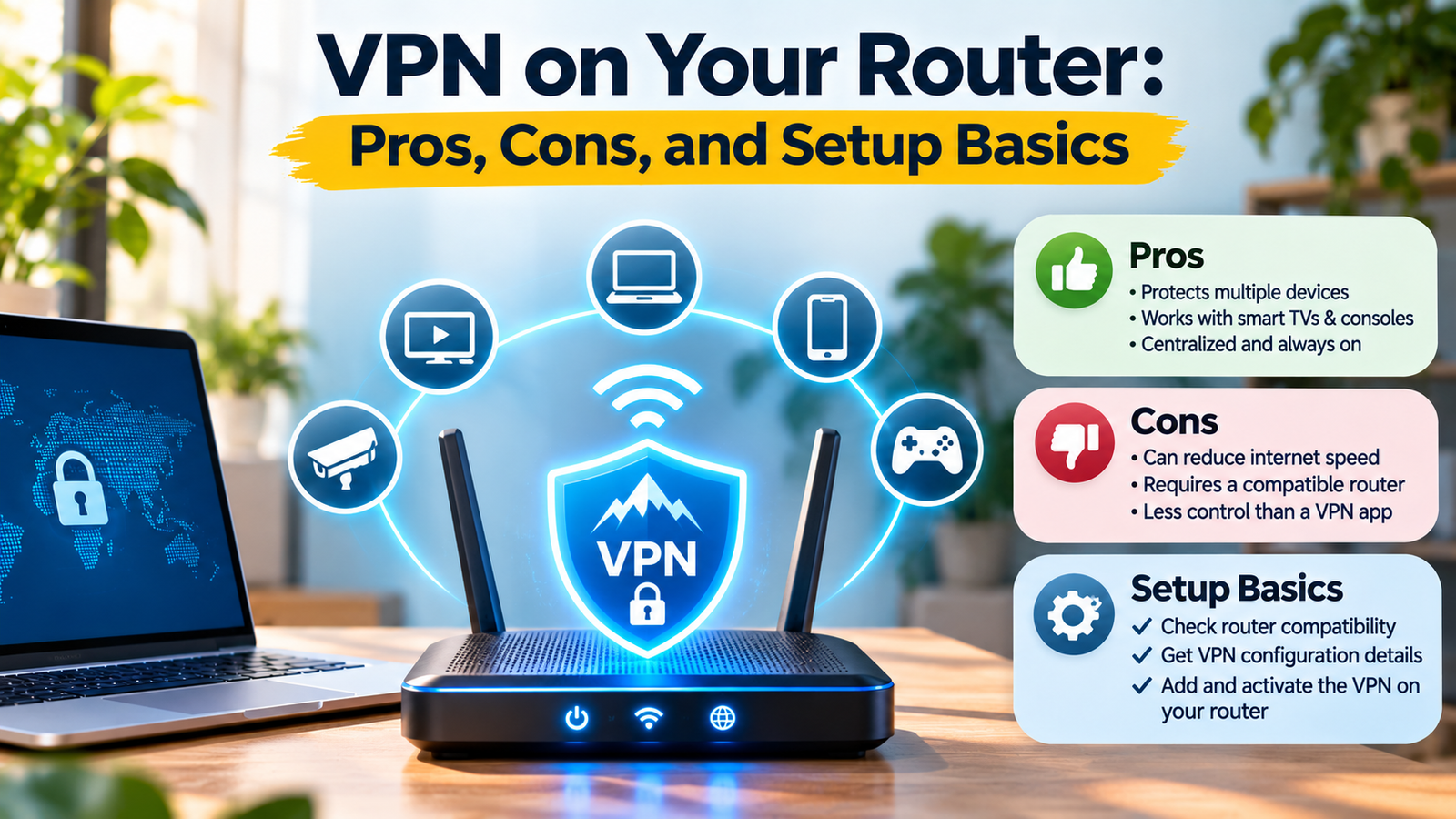
1. Protect multiple devices at once
A single configuration can cover laptops, smartphones, smart TVs and other connected devices. You don’t need to remember to activate a VPN application on each one.
2. Support devices without VPN apps
Smart TVs, gaming consoles and certain streaming devices may not support VPN software directly. A compatible router can provide a VPN connection to these devices through the network.
3. Centralised management
You can manage the VPN connection from one router dashboard instead of maintaining separate configurations across multiple devices.
4. Consistent network protection
Devices connected to the VPN-enabled network can use the encrypted tunnel automatically, depending on the router’s configuration. This is particularly useful for households with several users.
The Disadvantages You Should Consider
A router VPN is convenient, but it is not always the best choice.
- Reduced internet speed: Your router must encrypt and route traffic through the VPN server. Older or lower-powered routers may struggle with this additional processing. The actual speed impact depends on the router’s hardware, VPN protocol, server distance and internet connection.
- Less flexibility: Some VPN applications offer features such as specialised servers, ad blocking, automatic connection rules and easy location switching. These features may not be available through router configuration.
- All devices may share one VPN location: If you route your entire network through a server in another country, websites and streaming services may treat every connected device as being in that location.
- Troubleshooting becomes harder: If the VPN disconnects or the router is misconfigured, multiple devices may lose internet access. A kill switch or VPN-specific network rules can help prevent accidental traffic leaks, where supported.
- Router compatibility is limited: Many ISP-provided routers do not support third-party VPN client configurations. You may need a compatible router or alternative firmware.
VPN on Router vs VPN App: Which Is Better?
| Feature | VPN on router | VPN application |
|---|---|---|
| Device coverage | Multiple connected devices | Usually one device per setup |
| Smart TV support | Possible through router | Depends on native app support |
| Setup | More technical | Generally easier |
| Server switching | Depends on router interface | Usually simpler |
| Device-specific control | Limited on basic routers | More flexible |
| Speed | Depends heavily on router hardware | Depends on device and VPN provider |
| Best for | Whole-home coverage | Individual users and mobile devices |
For most people, the right choice depends on how many devices need protection and how much control they want over individual connections.
How to Set Up a VPN on Your Router
The exact menu names differ by manufacturer, but the general process is similar across compatible routers.
Step 1: Check router compatibility
Log in to your router’s administration page or check its official specifications. Look specifically for VPN Client support, not just VPN Server support. Confirm whether it supports OpenVPN or WireGuard, depending on your provider.
Step 2: Choose a compatible VPN provider
Check whether your provider supplies manual router configuration files and credentials. Some services require separate setup credentials rather than your regular account password.
Step 3: Download the configuration
Sign in to your VPN provider’s account and download the correct configuration file for your chosen server and protocol.
Step 4: Open your router dashboard
Connect to your router and enter its local gateway address in a browser. Sign in using your administrator credentials. Find the VPN Client section, which may appear under Advanced Settings or Network Settings.
Step 5: Add the VPN profile
Upload the configuration file or enter the required server details, username and password. Save the profile and activate the connection.
Step 6: Test before connecting every device
Check your public IP address and confirm that the displayed location matches your selected VPN server. Test websites, video streaming, video calls and important applications. If your router supports device-specific VPN routing, configure it before moving your entire network.
For a practical example, ASUS provides an official VPN Client setup guide, while Proton VPN offers router configuration instructions.
FAQs
1. Can I use a VPN on any Wi-Fi router?
No. The router must support VPN Client functionality or compatible third-party firmware. Check the exact model and hardware revision before purchasing a VPN subscription for this purpose.
2. Does a router VPN protect every connected device?
It can protect devices routed through the VPN connection. Some routers allow selected devices to bypass the VPN, so check the routing configuration.
3. Will a VPN on my router slow down the internet?
It can. Encryption requires processing power, and VPN server distance and network congestion can also affect performance.
Also Read: How to Track Competitors’ SEO: A Practical SEMrush Workflow