
How to Edit PDFs on Any Device Without Paying for Acrobat
Learn how to edit PDF files for free on Windows, Mac, Android, and iPhone. Discover simple tools to change text, sign forms, and edit PDFs without Acrobat.

PDFs are everywhere, from employment contracts and university applications to invoices, government forms, and business reports. Their biggest advantage is consistency: a PDF preserves its appearance across operating systems and devices. The format is governed by ISO 32000, an international standard designed for reliable document exchange. But that same consistency can make even a minor correction frustrating. Learning how to edit PDF files doesn’t mean purchasing an expensive subscription. Free tools can handle most everyday tasks, including adding text, correcting existing content, inserting signatures, highlighting documents, and rearranging pages.
The important distinction is between annotating a PDF and editing its original content. Some free applications let you write over a document without changing the underlying text. Others convert or reconstruct the document, making more substantial changes possible. Choosing the right method saves time and prevents formatting problems.
Can You Really Edit a PDF for Free?
Yes, although the available features depend on the software and the type of PDF.
For example, adding a signature to a contract is relatively straightforward. Replacing a paragraph inside a complex brochure is more difficult because PDFs aren’t structured like ordinary word-processing documents.
Before choosing an editor, identify what needs changing:
- Text corrections: Replace existing words, numbers, or paragraphs.
- Annotations: Add comments, highlights, shapes, or text boxes.
- Form completion: Enter information and sign documents.
- Page management: Rotate, delete, extract, or reorder pages.
- Scanned documents: Recognise printed text using optical character recognition (OCR).
Understanding these differences is essential when deciding how to edit PDF documents without paying for professional software.
How to Edit PDFs on Windows for Free
Use Microsoft Word for Text-Based PDFs
If you already have a licensed version of Microsoft Word, it can convert many text-based PDFs into editable documents.
- Open Microsoft Word and select File → Open.
- Choose the PDF you want to modify.
- Accept the conversion prompt.
- Edit the document as you would a Word file.
- Select Save As and choose PDF.
This works particularly well for letters, resumes, and reports containing mostly text.
However, conversion can shift page breaks, tables, and images. Always compare the finished PDF against the original before sharing it.
Use LibreOffice Draw Without a Subscription
LibreOffice Draw is a free, open-source alternative worth trying when you need to change text or graphical elements.
Open the PDF in Draw, select the text or object you want to modify, make your changes, and export the document as a PDF. It is useful for relatively simple layouts, but complex documents may not import perfectly. Missing fonts and unusual formatting can cause alignment problems.
How to Edit PDFs on Mac Without Acrobat
Mac users already have a capable PDF tool installed: Preview.
- Open a PDF in Preview and select the Markup toolbar.
- You can add text boxes, highlight passages, draw shapes, insert signatures, and complete supported forms.
- Preview also provides tools for rotating and organising pages.
There is one important limitation: Preview cannot directly rewrite the original text in a PDF. Its text boxes are annotations placed over the existing document.
If you need to replace actual wording, use a compatible document editor or convert the PDF into an editable format first. For anyone researching how to edit PDF files on a Mac, Preview is the most convenient starting point because it requires no additional installation.
How to Edit PDFs on Android and iPhone
Mobile PDF editing is particularly useful when you receive a form or contract while travelling.
On an iPhone or iPad, open the document in Files or a supported PDF viewer. Use the available Markup tools to add notes, text, drawings, or signatures.
Android users can open PDFs in compatible applications, including Google Drive’s PDF viewer or dedicated PDF editors. Available editing functions vary by application and Android version.
For more substantial changes, a browser-based editor may offer additional options.
Be careful with unfamiliar apps advertising completely free editing. Some allow modifications but require payment when exporting the finished document.
Edit PDFs Online Using Google Docs
Google Docs provides another practical method for learning how to edit PDF content without specialised software.
- Upload the PDF to Google Drive, right-click the file, and select Open with → Google Docs.
- Google converts the document into an editable format.
- After making changes, download it as a PDF.
This approach is useful for text-heavy documents and can extract text from certain scanned files.
However, complex tables, columns, and footnotes may not survive conversion accurately. Google Docs is better for recovering and revising content than preserving intricate page designs.
Best Free PDF Editing Methods Compared
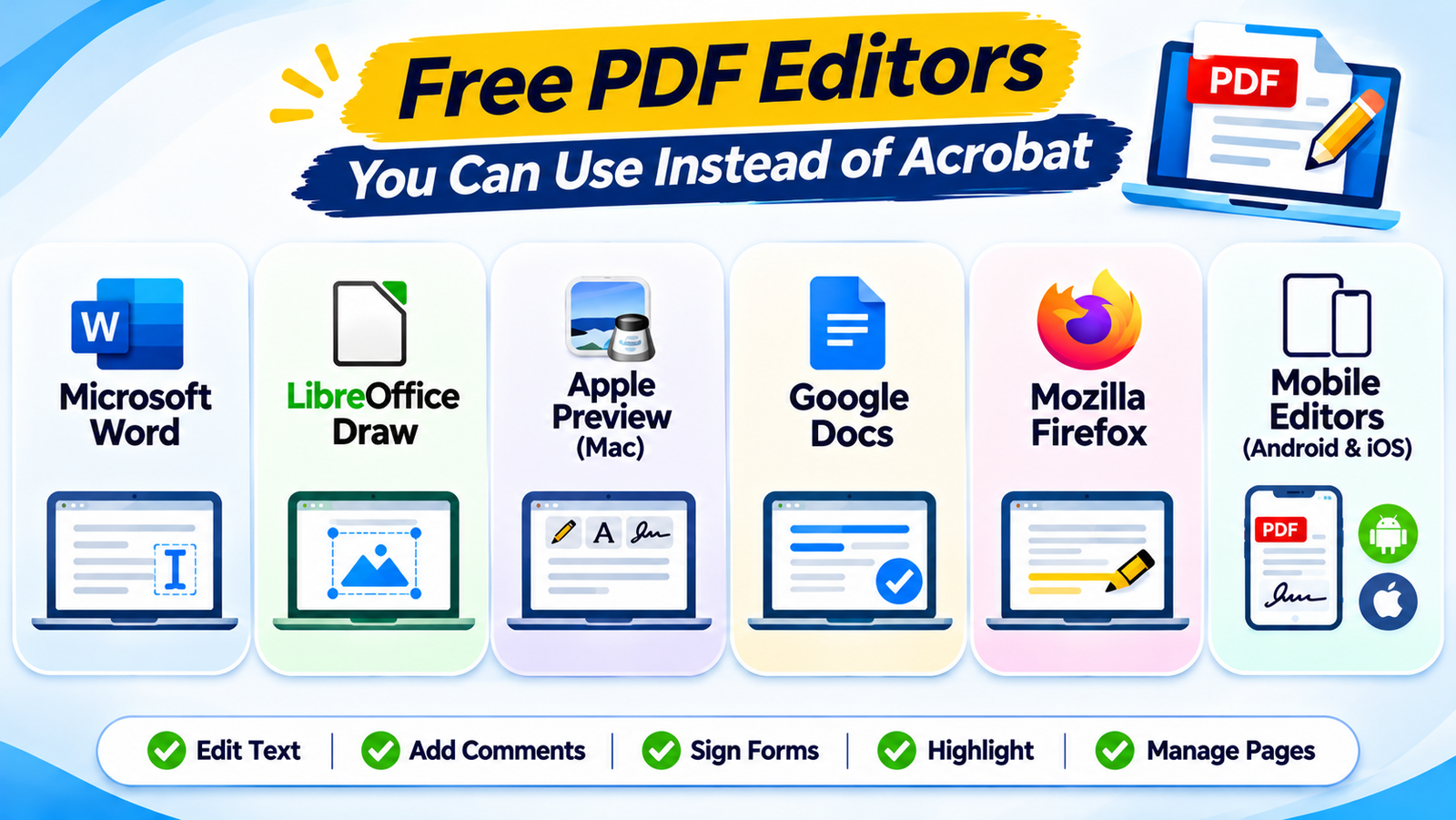
| Tool | Best for | Main limitation |
|---|---|---|
| Microsoft Word | Editing text-based PDFs | Requires access to Word; formatting may shift |
| LibreOffice Draw | Modifying text and objects | Complex layouts may change |
| Apple Preview | Signatures, forms, annotations | Cannot directly edit original text |
| Google Docs | Converting and rewriting PDF content | May lose formatting |
| Mozilla Firefox | Adding text, images, highlights, and signatures | Not a full original-text editor |
| Mobile markup tools | Quick notes and signatures | Features vary by device |
What About Scanned PDFs?
Scanned PDFs are different because their pages often contain images rather than selectable text.
To edit the words, you first need OCR software to recognise the characters. Google Drive can convert certain scanned documents into editable text. However, OCR accuracy depends on image quality, language, handwriting, and page layout.
After conversion, check names, dates, numerical values, and punctuation carefully. Even small recognition errors can create serious problems in financial or official documents.
How to Keep Your Documents Safe
Free editing should never come at the expense of privacy.
Avoid uploading bank statements, identity documents, medical records, or confidential contracts to unknown online services.
For sensitive files, choose reputable offline applications whenever possible. Keep the original document unchanged, work on a copy, and verify that signatures and formatting remain intact.
Also remember that covering sensitive information with a white rectangle does not securely remove it. Proper redaction must permanently eliminate the underlying content.
These precautions matter just as much as knowing how to edit PDF files.
Final Thoughts
You don’t need Acrobat for every PDF-related task. Preview and mobile markup tools are convenient for signatures and annotations, while LibreOffice Draw, Word, and Google Docs offer more flexibility for content changes.
The best solution depends on whether you’re adding information, replacing existing text, or working with a scanned document. Start with the simplest free tool that meets your needs, preserve the original, and review the exported file before sending it.
How to Edit PDFs: FAQs
1. Can I edit existing PDF text without Acrobat?
Yes. LibreOffice Draw can modify content in many PDFs, while Microsoft Word and Google Docs can convert suitable PDFs into editable documents. Results depend on the original layout.
2. Is there a completely free PDF editor?
LibreOffice Draw and Firefox offer free PDF editing capabilities. Apple Preview also provides built-in annotation and signing tools for Mac users.
3. Can I edit a PDF directly on my phone?
Yes. iPhones and Android devices support various annotation and form-filling options. Editing original text may require additional software.
Also Read: The Best Free PDF Editors That Don’t Watermark Your Files