
Fixing Bad Audio on Calls: Krisp, Hardware, and Settings That Help
Poor call audio is rarely caused by just one thing. It can come from a low-quality microphone, incorrect input settings, Bluetooth limitations, background noise, echo, network instability or even multiple noise-cancellation tools interfering with one another. This guide to fixing bad audio on calls looks at the practical solutions that make a noticeable difference, from Krisp noise cancellation and microphone hardware to Zoom, Microsoft Teams and Google Meet settings. The problem is more common than many people realise: a 2024 collaboration report found that 63% of surveyed office workers considered being able to hear clearly the most important aspect of a conference call. Yet 52% reported distracting background noise and 50% experienced annoying echo. Clear audio is not a luxury; it is a basic requirement for productive remote conversations.
First, Identify What Is Actually Wrong
Before buying a new headset or installing another application, identify the symptom. Different audio problems require different fixes.
| Audio problem | Likely cause | What to try |
|---|---|---|
| Voice sounds distant or muffled | Microphone too far away or poor input quality | Move the mic closer; check input selection |
| Background noise is distracting | Fans, traffic, keyboard or nearby conversations | Enable noise suppression or Krisp |
| Other people hear an echo | Speakers feeding sound back into the mic | Use headphones; check echo cancellation |
| Voice cuts in and out | Aggressive noise filtering or unstable connection | Adjust suppression; test another network |
| Volume keeps changing | Automatic gain control or microphone sensitivity | Review input levels and gain settings |
| Bluetooth headset sounds poor | Bluetooth profile or device compatibility | Test a wired USB headset |
A useful first test is to record your voice locally using your computer’s recording application. If the recording already sounds poor, the problem is probably your microphone, room or operating system settings. If the recording sounds clear but calls do not, investigate the conferencing application or network.
Krisp: Removing Background Noise Without Changing Your Room
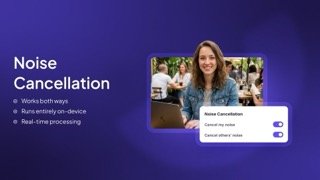
Krisp is a noise-cancellation application designed for online calls. It creates virtual audio devices that sit between your physical microphone, speakers and communication application.
- Its microphone processing reduces unwanted sounds such as keyboard clicks, traffic, fans and other background noise.
- Its speaker processing can also reduce noise coming from other participants.
- Krisp additionally provides echo cancellation and voice isolation features.
One important detail when fixing bad audio on calls with Krisp is selecting the correct devices.
- Choose your physical microphone and speakers inside Krisp, then select Krisp Microphone and Krisp Speaker in your meeting application.
- Using another virtual microphone as the input can cause compatibility problems.
Avoid stacking multiple noise filters.
- Krisp recommends disabling overlapping processing in your operating system, headset software and calling application when Krisp is handling microphone processing.
- Running several noise-cancellation systems together can make speech sound unnatural or cause words to disappear.
Krisp is particularly useful when you work from a shared office, home with background activity, or a location where environmental noise cannot be eliminated completely. It cannot, however, repair a damaged microphone or compensate for a very weak internet connection.
The Hardware That Makes the Biggest Difference
Software can improve a microphone signal, but it cannot recover details that the microphone never captured properly.
A wired USB headset with a boom microphone is a reliable starting point for regular meetings. The microphone sits closer to your mouth, reducing the amount of room noise it captures. A dedicated USB microphone can also work well, provided you position it correctly.
Consider these practical adjustments:
- Microphone distance: Keep a boom mic roughly a few centimetres from your mouth, slightly to the side to reduce breath noise.
- Headphone choice: Use closed-back headphones to prevent speaker audio from leaking into the microphone.
- USB connection: Connect directly to your computer when possible rather than through an unreliable hub.
- Bluetooth limitations: Some Bluetooth headsets switch to a lower-quality hands-free audio mode during calls. Test wired or USB audio if speech suddenly sounds compressed.
- Room acoustics: Curtains, rugs, bookshelves and soft furnishings help reduce sound reflections. Avoid sitting directly in front of bare walls or large glass surfaces.
For frequent professional calls, a consistent wired setup is often more dependable than switching between several wireless devices.
Settings to Check in Zoom, Teams and Google Meet
Even good hardware can sound poor when the wrong microphone or audio mode is selected.
1. Zoom:
Open Settings, select Audio and check the microphone input. Start with the default Noise removal mode and adjust background noise suppression according to your environment. Avoid enabling advanced audio modes intended for music recording unless you specifically need them.
2. Microsoft Teams:
Open Settings, select Devices and verify your microphone and speaker. Check noise suppression or voice isolation options. Teams also offers a test call, which is useful for checking how your voice sounds before an important meeting.
3. Google Meet:
Open the audio settings before joining and select the correct microphone and speaker. If you experience echo, use headphones and lower speaker volume. Meet also provides troubleshooting suggestions when it detects audio or device problems.
The right settings depend on the hardware and environment. Do not automatically choose the highest noise suppression level: excessive filtering can make voices sound clipped or robotic.

A Practical Troubleshooting Routine Before Every Important Call
A few minutes of preparation can prevent most avoidable audio problems.
Start by checking the selected microphone and speaker. Record a short voice sample, listen for distortion and confirm that your microphone is not too far away. Close applications that may be using the microphone, particularly other meeting or recording tools.
Next, check your connection. If audio breaks up while your local recording sounds clear, move closer to the router, use Ethernet where possible or pause bandwidth-heavy downloads. Restart the meeting application if it has stopped recognising your device.
For anyone regularly fixing bad audio on calls, keep a known-good USB headset available. It gives you a quick way to determine whether the issue is with your normal microphone, Bluetooth connection or computer settings.
Final Thoughts
Clear communication does not require a professional recording studio. It requires the right microphone, sensible placement, suitable audio settings and noise reduction that matches your environment.
When fixing bad audio on calls, work from the simplest cause to the more complicated ones. Check the hardware first, adjust the meeting application, then introduce Krisp if background noise remains a problem. Test one change at a time so you know what actually improved the sound.
A clear voice makes meetings easier to follow, reduces repetition and helps conversations feel more professional. That is a worthwhile improvement for anyone who spends a significant part of the working day on calls.
Frequently Asked Questions
1. Does Krisp work with Zoom, Teams and Google Meet?
Yes. Krisp can work with common conferencing applications by using its virtual microphone and speaker devices. Select the Krisp devices in the meeting application’s audio settings.
2. Why does my Bluetooth headset sound worse during calls?
Some Bluetooth devices switch to a hands-free audio profile when their microphone is active. This can reduce audio quality. Try a wired USB headset or a separate microphone and headphones.
3. Should I use Krisp and Zoom noise cancellation together?
Usually, avoid running multiple microphone-processing systems simultaneously. If Krisp is processing your microphone, disable overlapping noise suppression and audio enhancements in other applications where possible.
Also Read: How to Study Effectively for Online Courses While Working Full-Time