
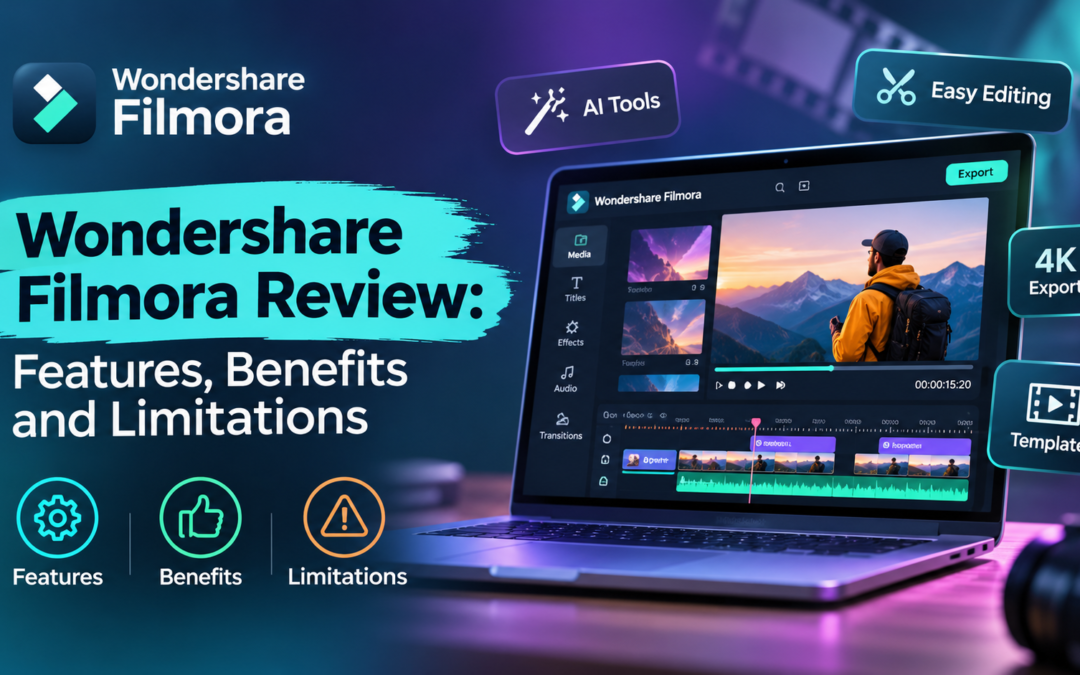
Wondershare Filmora Review: Features, Benefits and Limitations
Choosing video-editing software is no longer just about trimming clips and adding transitions. Today’s creators need tools for subtitles, audio cleanup, background removal, social-media formats and increasingly, AI-assisted video generation. This Wondershare Filmora review is useful for people trying to decide whether they need a professional editing suite or a simpler tool that can still produce polished results.
Filmora’s latest major release, Version 16, announced in September 2026, expands its AI and editing capabilities with features such as AI Media Analysis, Camera Tracking, 360° Video Reframing and multi-source recording. It also offers AI video enhancement with upscaling up to 4K. These additions make Filmora more capable than a basic beginner editor, but its pricing structure, AI-credit requirements and depth of advanced controls deserve a closer look before purchasing.
What Is Wondershare Filmora?
Wondershare Filmora is a video-editing application for creators who want a practical balance between ease of use and creative control. It is available for desktop and mobile platforms, with editing tools for personal videos, YouTube content, social-media campaigns, tutorials, presentations and promotional material.
Its main attraction is the timeline-based editing workflow. Users can import video, audio and image files, arrange them on tracks, trim clips, add transitions, adjust colours and export the finished project. Beginners can start with straightforward edits, while more experienced users can work with keyframes, tracking, masking and other advanced features.
Key Features That Make Filmora Useful
Filmora’s feature set covers much more than basic cutting and joining. Here are the capabilities worth understanding.
AI-Powered Video Editing
AI is a major part of Filmora’s current development. Its AI tools help reduce repetitive editing work and support creative tasks that would otherwise require separate applications.
Some notable features include:
- AI Video Enhancer: Improves video clarity, reduces blur and can upscale footage up to 4K.
- AI Speech-to-Text: Converts spoken audio into subtitles and provides tools to refine transcription.
- AI Smart Cutout: Helps isolate subjects and remove unwanted objects or change backgrounds.
- AI Video Translation: Supports translating video content into multiple languages, with voice cloning and lip-sync features.
- Smart Short Clips: Identifies useful moments in longer footage and turns them into shorter social-media-ready videos.
- AI Media Analysis: Analyses media files to generate descriptions, keywords, scene recognition and editing suggestions.
These tools can save time, particularly for creators producing content regularly. However, AI features may have separate usage limits or credit requirements depending on the plan.
Timeline Editing and Creative Controls
Filmora’s timeline editor is designed to make editing accessible without removing control over the final result. Users can arrange multiple video and audio tracks, adjust clip timing, add transitions and refine movement using keyframes.
Camera Tracking helps follow a subject within a shot, while colour masks allow adjustments to selected areas of footage. The 360° Video Reframing feature also makes it possible to convert 360-degree footage into conventional shots.
Audio Editing and Screen Recording
Clear audio can make a noticeable difference to the quality of a video. Filmora includes audio tools for noise reduction, voice enhancement, text-to-speech and vocal removal. These are useful for tutorials, interviews, product demonstrations and talking-head videos.
Its multi-source recording feature can capture screen, camera and audio sources together, making it practical for software demonstrations, online lessons and gaming content.
Benefits and Limitations at a Glance
| Area | Benefits | Limitations |
| Ease of use | Accessible timeline and beginner-friendly workflow | Advanced tools still require practice |
| AI tools | Automation for subtitles, enhancement and content creation | Some features use AI credits or have plan restrictions |
| Creative effects | Built-in transitions, titles, filters and templates | Premium assets may require additional payment |
| Audio | Voice enhancement, noise reduction and text-to-speech | Not a replacement for specialist audio software |
| Export | Supports high-resolution output, including 4K | Export options depend on device and project settings |
| Professional editing | Tracking, keyframes, masks and colour controls | Less suited to complex VFX and advanced post-production workflows |
What Are the Main Benefits of Using Filmora?
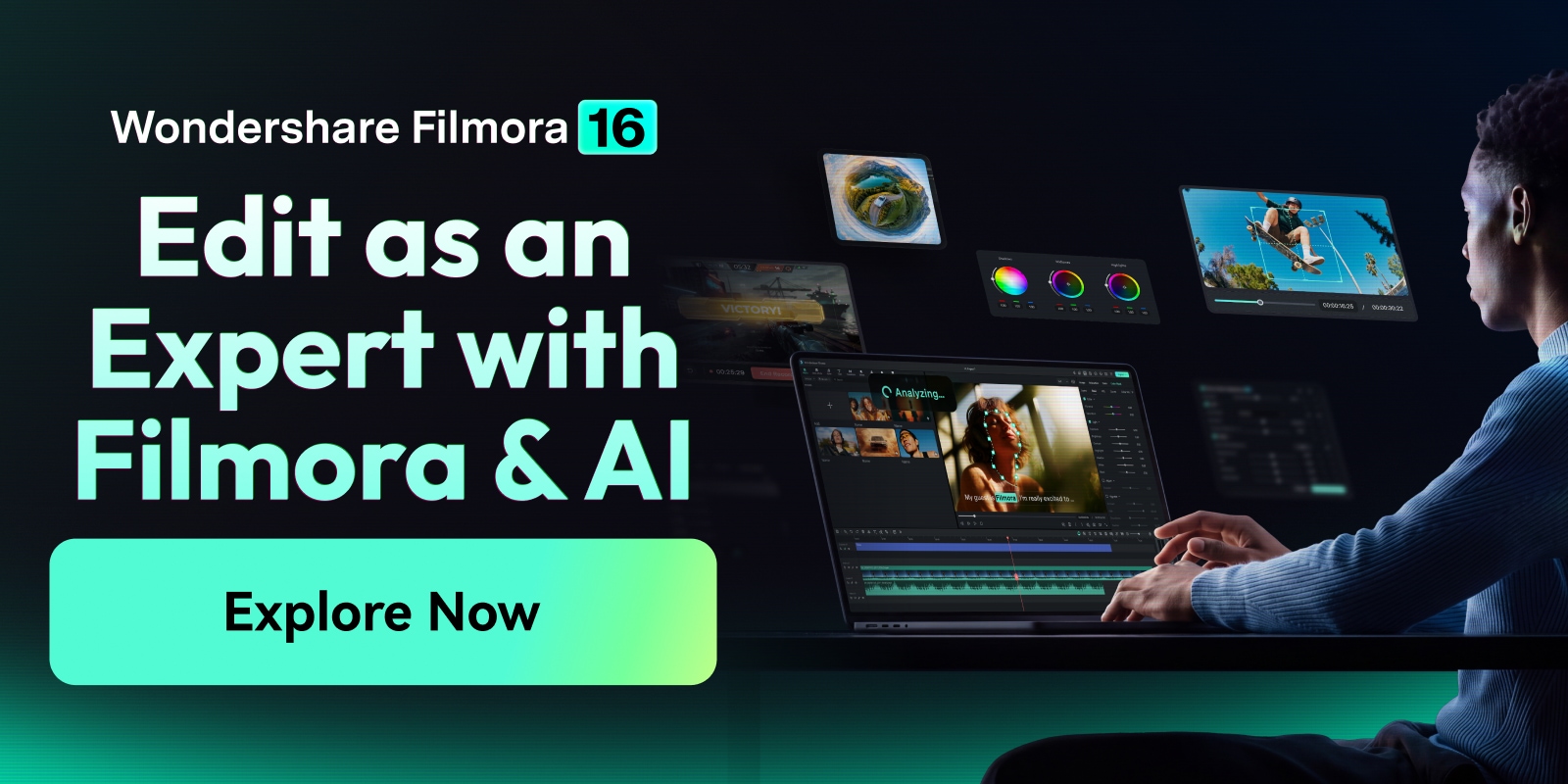
Source: Wondershare Filmora
The biggest advantage is the amount of work users can complete in one application. A creator can edit footage, add subtitles, improve audio, apply effects and prepare different formats without constantly switching between tools.
Filmora is particularly useful for:
- YouTubers and content creators: Editing talking-head videos, tutorials, gaming footage, Shorts and regular channel content.
- Small businesses: Producing product demonstrations, advertisements, customer testimonials and social media videos without maintaining a large editing setup.
- Educators and trainers: Recording lessons, editing screen captures and adding subtitles to make instructional content easier to follow.
- Social media managers: Creating multiple versions of a video for different platforms and aspect ratios.
Another advantage is the availability of a free version. It gives users an opportunity to explore the interface and test the editing workflow before committing to a paid plan. However, free exports include a watermark, so it is not ideal for publishing professional client work.
Where Does Filmora Fall Short?
A balanced Wondershare Filmora review must consider the limitations as well as the feature list.
First, the free version’s watermark is an important restriction. Users planning to publish branded or commercial videos will generally need a paid licence.
Second, the overall cost can extend beyond the editor itself. Subscription plans, premium creative assets, add-ons and AI credits may affect the final expense. Before purchasing, check exactly which features and downloads are included in the selected plan.
Third, Filmora is not designed to replace every professional editing application. Editors working on complex visual effects, detailed colour grading, advanced compositing or large collaborative productions may find its controls less extensive than specialist software.
Performance also depends on the computer. Wondershare lists 8 GB RAM as the Windows minimum, while 16 GB RAM and 4 GB VRAM are recommended for HD and 4K editing. More demanding 8K workflows require considerably stronger hardware.
Is Wondershare Filmora Worth Using?
For beginners, YouTubers, educators and small marketing teams, Filmora offers a useful combination of accessible editing and modern AI-assisted features. It can handle a wide range of everyday video projects without requiring users to master a complicated professional workflow.
However, experienced editors working on high-end productions may prefer software with deeper colour, audio, compositing and collaboration capabilities. The best choice depends on the type of videos you produce, your editing experience and how frequently you will use the premium features.
Ultimately, a Wondershare Filmora review points to a capable editing platform with a clear audience: creators who want to produce polished content efficiently. Try the free version, test it with your own footage and compare the paid-plan inclusions before making a purchase.
Wondershare Filmora Review: Frequently Asked Questions
1. Is Wondershare Filmora good for beginners?
Yes. Its timeline interface, ready-made effects and guided editing workflow make it approachable for people learning video editing.
2. Does Filmora support 4K video editing?
Yes. Filmora supports 4K workflows. However, smooth editing depends on your computer’s processor, memory, graphics hardware and storage.
3. Does the free version of Filmora add a watermark?
Yes. The free version generally adds a watermark to exported videos. A suitable paid licence is required for watermark-free exports.
Also Read: How to Make a Rental Feel Like Home Without Losing Your Deposit