
by parth@bidkinetic.com | Sep 6, 2026 | Business
If the inbox is already manageable with Gmail or Outlook, paying $30 every month for an email client sounds excessive. But if email consumes hours of the workday, the calculation changes. This Superhuman Email review looks at whether the premium comes from genuinely faster email handling or simply from putting familiar features behind a polished interface. The platform claims its workflow can help users save four hours per week, respond 12 hours faster and handle twice as many emails in the same amount of time.
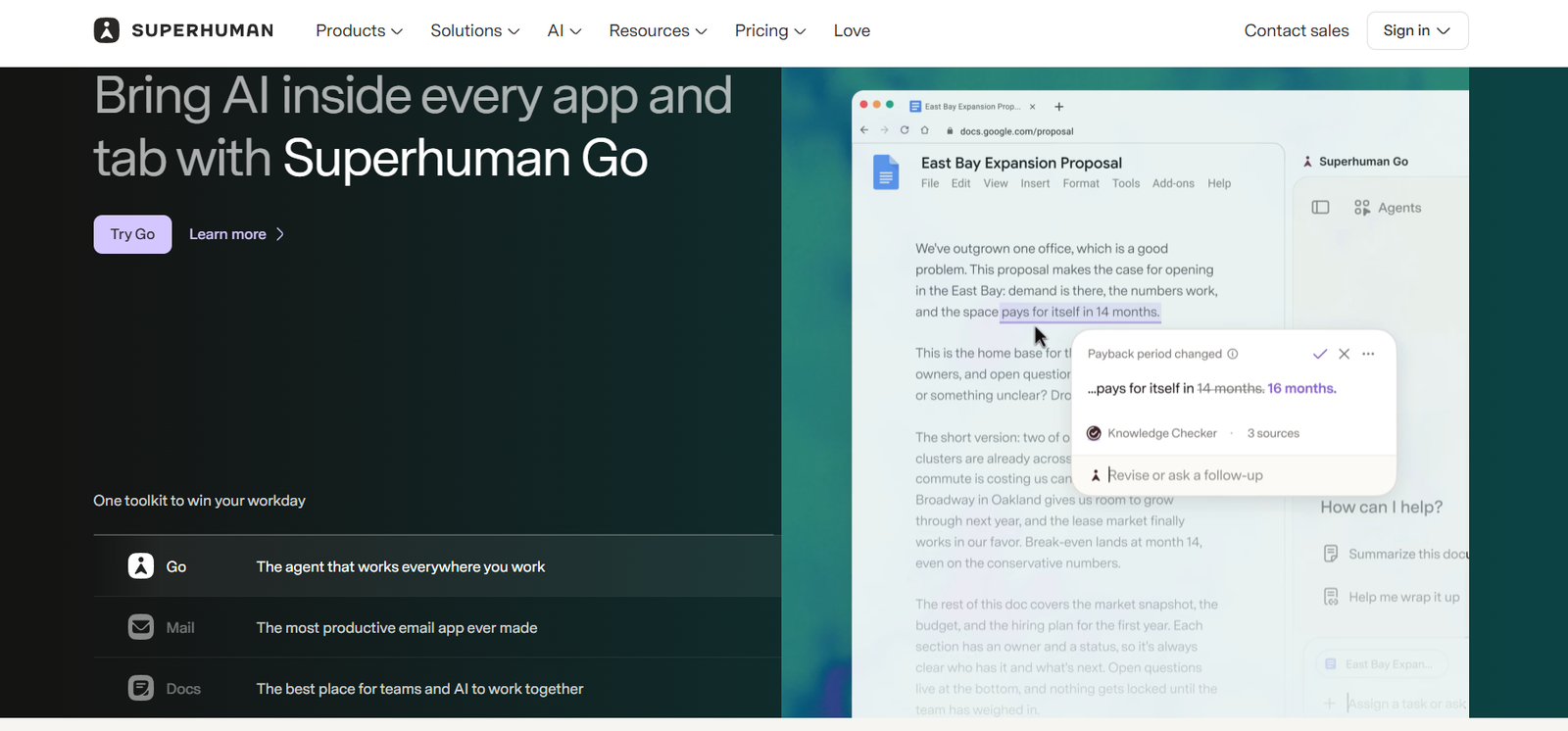
The current product is also more capable than the minimalist inbox associated with Superhuman’s earlier reputation. Starter includes Superhuman AI, email productivity tools, calendar and scheduling, team collaboration and more than 100 keyboard shortcuts. Business adds Auto Drafts, Ask AI, custom AI labels, HubSpot and Salesforce integrations, and Recent Opens.
Source: Superhuman
What Makes Superhuman Different From Gmail?
Speed Is the Product
Superhuman is built around the idea that email should be processed rather than browsed. Keyboard commands, rapid navigation, split inboxes, shortcuts and instant actions are designed to reduce the number of mouse movements and context switches involved in handling messages.
That approach makes the biggest difference for repetitive inbox work. Archiving, replying, forwarding, snoozing, searching and jumping between conversations can become almost mechanical once the shortcuts become familiar. The company says actions are designed to happen in under 100 milliseconds, although the real benefit depends on how quickly a user adopts the workflow.
Split Inbox Is More Useful Than Another Folder System
Superhuman’s Split Inbox separates incoming mail into categories so important messages do not have to compete with newsletters, automated notifications and lower-priority conversations.
This is a subtle but important distinction. Gmail provides enormous flexibility, but that flexibility can also encourage endless labels, folders and filters. Superhuman takes a more opinionated approach, trying to decide how the inbox should be worked rather than simply giving users more ways to organise it.
The AI Features Are More Practical Than Flashy
AI Handles the Repetitive Parts
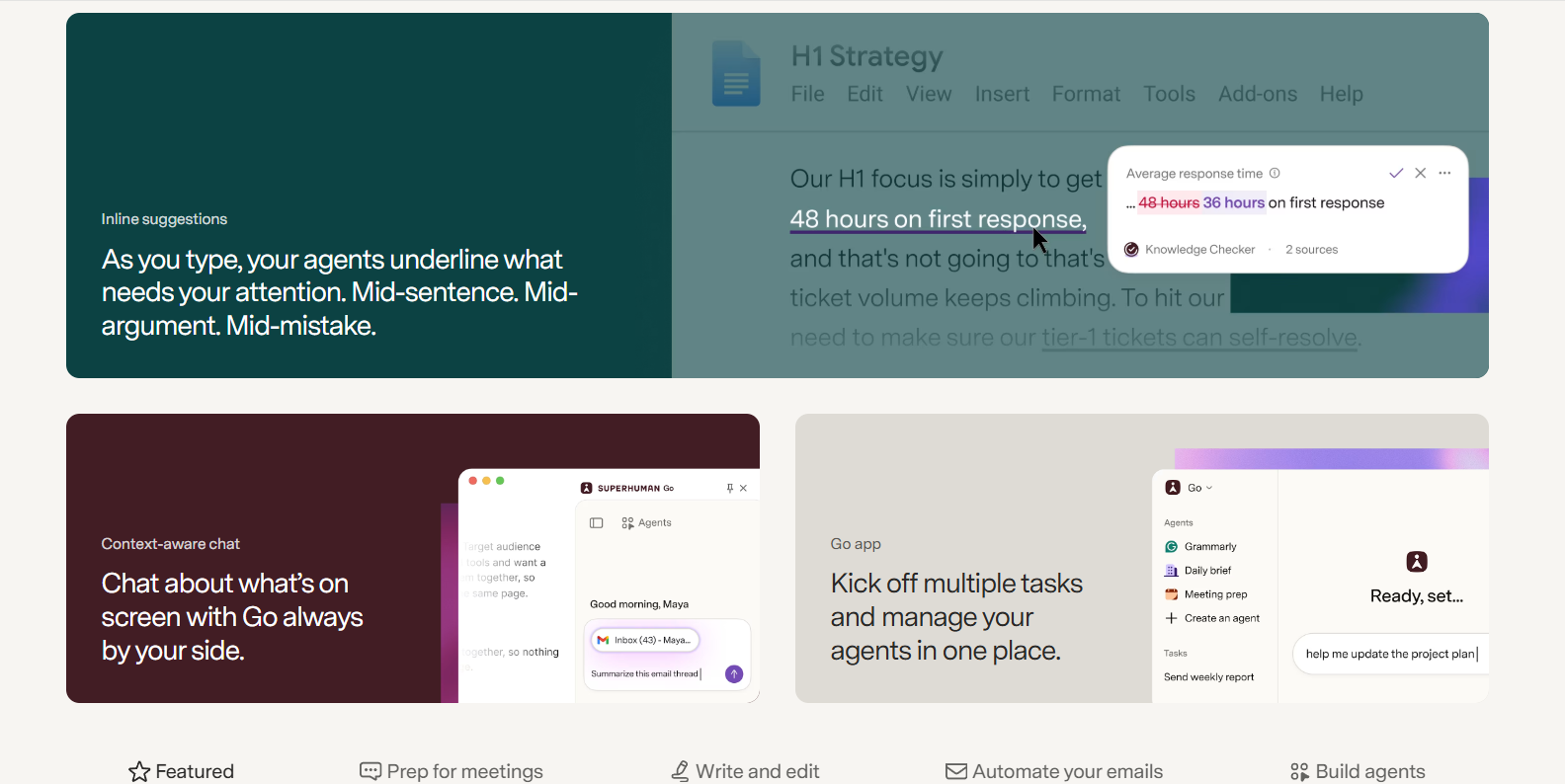
Superhuman’s AI tools include Write with AI, Instant Reply, Instant Event, Auto Archive, Auto Labels, Auto Reminders, Auto Summarize, Autocorrect and Autocomplete. Business users get additional capabilities such as Auto Drafts, Ask AI and Custom Auto Labels.
The useful part is how these features sit inside the inbox. AI is not treated as a separate chatbot that requires copying an email into another window. A message can be summarised, answered or organised while remaining inside the normal email workflow.
Auto Drafts Could Be the Real Differentiator
Business subscribers get Auto Drafts, which can automatically prepare replies based on the context of incoming messages. Ask AI also allows questions about email content, while custom AI labels can classify messages according to rules specific to a workflow.
For someone receiving dozens of recurring requests, this is considerably more valuable than a generic “write an email” button. For a person who sends only a handful of emails each day, it is much harder to justify the additional subscription.
Where Superhuman Earns Its Price
| Area |
Superhuman advantage |
Reality check |
| Speed |
Keyboard-first navigation and rapid actions |
Requires learning the shortcuts |
| Inbox management |
Split Inbox, AI labels and automation |
Less flexible than building everything manually |
| AI writing |
Replies, autocomplete and drafting |
Quality still needs human review |
| Summaries |
Quick understanding of long threads |
Most useful for high-volume inboxes |
| Calendar |
Scheduling directly from email |
Useful, but not unique |
| CRM |
HubSpot and Salesforce on Business |
Only valuable to sales/customer teams |
| Collaboration |
Shared conversations and team comments |
More relevant to teams than individuals |
| Support |
Live onboarding/productivity coaching |
Adds value for professional users |
This is where the Superhuman Email becomes less about features and more about working style. Superhuman is not necessarily better because it has more functions than Gmail. It is better when speed and consistency matter more than unlimited customisation.
The onboarding also reflects that philosophy. Superhuman includes live 1:1 onboarding on its Mail plans, with the company positioning productivity coaching as part of the product rather than leaving users to discover shortcuts themselves.
What Could Be Better?
Source: Superhuman
The biggest weakness is obvious: the price.
- Starter costs $30 monthly, while annual billing brings it down to $25 per month.
- Business costs $40 monthly or $33 per month annually.
- That means the annual Starter subscription is $300, enough to make the decision meaningful even for a professional.
Someone who sends 20 emails a day may not recover that cost. Someone who lives inside email for six hours a day might.
This is another point worth noticing.
- Starter includes most Superhuman AI features, but Auto Drafts, Ask AI, Custom Auto Labels with AI, HubSpot and Salesforce integrations and Recent Opens are Business features.
- That makes the $30 plan slightly less compelling for users specifically attracted by AI automation.
- The cheaper plan is strongest as a speed-focused email client, while Business starts making sense when email is tied directly to sales, customer management or heavier automation.
Is Superhuman Worth $30 a Month?
The Superhuman Email review verdict depends almost entirely on inbox volume.
For executives, founders, sales professionals, recruiters, consultants and customer-facing teams, saving even 30 minutes a day could make the subscription economically sensible. Superhuman’s own reported figure of four hours saved per week would make the $30 monthly cost relatively small compared with the value of professional time, although that productivity claim should be treated as a vendor-reported result rather than an independent benchmark.
For lighter users, Gmail or Outlook remains difficult to beat because the core email infrastructure is already paid for and increasingly includes AI assistance. Paying Superhuman’s premium only makes sense when its speed-focused workflow becomes noticeably faster than the existing setup.
Final Verdict
The Superhuman Email review conclusion is that Superhuman is not really selling email. It is selling a faster way to process email.
That distinction explains both its appeal and its price. The interface, keyboard shortcuts, Split Inbox and integrated AI can make a high-volume inbox feel substantially less cumbersome. But the $30 monthly Starter price is hard to defend if email is not a major part of the working day.
Worth it for: heavy email users who value speed.
Probably not worth it for: casual users, students, and people already satisfied with Gmail or Outlook.
Best value: Starter for speed-focused users; Business for teams that will actually use Auto Drafts, AI automation and CRM integrations.
FAQs
- Is Superhuman better than Gmail?
Not universally. Superhuman is designed for speed, keyboard-driven workflows and high-volume inbox management. Gmail remains the better fit for users who prioritise flexibility, integrations and avoiding another subscription.
- Does Superhuman work with Outlook?
Yes. Superhuman Mail supports both Gmail and Outlook, making it useful for professionals working across Google Workspace and Microsoft environments.
- Does Superhuman have AI?
Yes. Superhuman Mail includes AI features such as writing assistance, instant replies, summaries, autocomplete, auto labels and reminders. Business adds Auto Drafts, Ask AI and additional AI-powered automation.
Also Read: Troop Messenger Review: The Team Messaging Tool Built for Remote Collaboration

by parth@bidkinetic.com | Sep 6, 2026 | Tech
If the goal is to launch a first WordPress website without spending days figuring out servers, caching, SSL, migrations and DNS, this BlueHost Review starts with a fairly important observation: Bluehost is still heavily designed around removing those early technical decisions. Its current WordPress hosting starts at $3.99 per month and renews at $9.99. The plans include an SSL certificate, CDN, AI website builder, free first-year domain, WordPress updates and 24/7 support, with the Starter plan supporting up to 10 websites and 10GB NVMe storage.
That sounds beginner-friendly on paper, but the real test is what happens after the promotional price disappears. Bluehost currently says it powers more than 5 million website owners and has over 20 years of hosting experience. Its WordPress hosting also carries a 99.99% uptime SLA and a 30-day money-back guarantee. The interesting question in 2026 is whether that convenience remains valuable once a website starts growing.

Getting Started Is Still Bluehost’s Strongest Argument
WordPress Setup Is Deliberately Simple
Bluehost does a good job of hiding the technical machinery that tends to intimidate first-time website owners. WordPress is automatically installed, managed updates are available, and the AI builder can create an initial site from a short description rather than starting with a blank installation.
The free migration tool is another practical touch. Instead of treating migration as a developer-only task, Bluehost provides a dedicated WordPress migrator, which can be useful when moving an existing small website from another host.
The Dashboard Matters More Than the Homepage
For beginners, the quality of the account interface can matter more than raw server specifications. Domain management, WordPress installation, SSL, site tools and support are brought into the same ecosystem, reducing the number of separate dashboards involved.
That convenience is particularly useful during the first few weeks. Once a site becomes more technical, however, the need for staging, caching, backups, malware protection and more granular controls becomes much more important.
What Bluehost Offers Beyond Basic Hosting

The 2026 WordPress Stack is Considerably More Capable
The current WordPress plans include NVMe storage, CDN integration, server-level caching, staging, SSH and WP-CLI. The Starter plan offers 10GB storage and up to 10 websites, while Business moves to 50GB and up to 50 websites.
That is a meaningful upgrade from the old perception of Bluehost as simply a cheap place to install WordPress. The combination of caching, CDN and staging gives users tools to make performance and site changes without immediately needing a separate optimization service.
Security Is Built Into the Hosting Package
Bluehost includes free SSL, malware scanning, a web application firewall, DDoS protection and weekly website backups on its current WordPress plans.
The practical advantage is not that these features make a website invulnerable. They reduce the number of essential security tasks that a beginner has to assemble independently. That is exactly the kind of convenience a beginner-oriented host should provide.
BlueHost Review: Pricing Is Where the Decision Gets Interesting
| Plan |
Introductory price |
Renewal price |
Websites |
Storage |
| Starter |
$3.99/month |
$9.99/month |
10 |
10GB NVMe |
| Business |
$6.99/month |
$13.99/month |
50 |
50GB NVMe |
| eCommerce Essentials |
$12.99/month |
$26.99/month |
100 |
100GB NVMe |
The prices above are based on a 36-month term. Bluehost’s promotional rates are substantially lower than the regular renewal rates, which makes the initial subscription attractive but also means the long-term cost needs closer attention. The plans include features such as SSL, CDN, WordPress updates and other hosting tools, while the higher tiers add more capacity and e-commerce-oriented functionality.
The Renewal Jump Deserves Attention
The biggest pricing issue is not the introductory offer itself. It is what happens when that offer expires. Starter rises from $3.99 to $9.99 per month, while Business increases from $6.99 to $13.99. eCommerce Essentials moves from $12.99 to $26.99.
That does not automatically make Bluehost expensive. It simply means the promotional price should not be treated as the true long-term hosting cost. A website expected to remain online for several years should be evaluated using the renewal rate when comparing Bluehost with competing hosts.
Starter Is Enough for Many First Websites
For a personal blog, portfolio, small business website or relatively straightforward content site, Starter already provides enough capacity to avoid immediately paying for a higher tier. Its allowance of up to 10 websites is also more generous than what a first-time website owner might expect from an entry-level plan.
Business becomes more useful when multiple websites need to be managed from one account or when additional storage and capacity justify the higher price. eCommerce Essentials is better suited to stores that need Bluehost’s ecommerce-focused tools rather than a standard informational website.
Where Bluehost Could Still Improve

The plans have clear boundaries.
- Storage, website counts, support options and performance expectations differ by tier.
- A website with unusually heavy traffic or resource-intensive plugins may eventually outgrow the environment designed for low-to-moderate traffic.
Bluehost itself positions its standard shared hosting for low-to-moderate traffic websites and recommends optimized options for higher-traffic or more complex use cases.
This is probably the biggest issue when comparing Bluehost with competitors.
- The initial price looks excellent, but the renewal figure is substantially higher.
- Bluehost also notes that promotional rates apply only during the initial term and automatically renew at the regular rate unless changed or cancelled.
That means the cheapest-looking plan is not necessarily the cheapest over three or five years. Comparing total ownership cost is more useful than comparing the first-month price.
What We Like About Bluehost
It Reduces the Number of Technical Decisions
For a first WordPress site, having hosting, SSL, CDN, staging, updates, migration, and support in one place is genuinely useful. Bluehost also provides 24/7 human support on its current WordPress plans.
The AI website builder is another convenience rather than a replacement for WordPress expertise. It can get a basic site structure online quickly, after which the normal WordPress environment remains available for customization.
There is Room to Grow Without Immediately Migrating
Starter supports 10 websites, while Business supports 50, and higher plans increase storage and capabilities. That gives small agencies, freelancers and businesses some breathing room before another hosting migration becomes necessary.
The inclusion of staging is particularly useful once a website becomes important. Testing plugin or theme changes before pushing them live is a feature that becomes far more valuable after the beginner stage.
Final Verdict on BlueHost Review
The BlueHost review verdict for 2026 is a qualified yes. Bluehost remains one of the easier choices for someone launching a first WordPress website, particularly when setup simplicity, support and having several essential services under one account matter.
The strongest case for Bluehost is not that it has the cheapest hosting. It is that beginners can get a functioning WordPress site online without having to become server administrators first.
Best for: first-time WordPress users, blogs, portfolios, small businesses and users who value guided setup.
Less suitable for: high-traffic websites, highly customized server environments and buyers choosing purely on long-term lowest cost.
For beginners, Bluehost still earns its reputation, but the smart purchase decision is to judge the renewal price and included features, not just the introductory offer.
FAQs: BlueHost Review
- Does Bluehost offer website migration?
Yes. Bluehost provides a free WordPress site migration tool that can be used to move an existing WordPress website to the platform.
- Does Bluehost have an AI website builder?
Yes. Its current WordPress hosting includes an AI-powered site builder that can generate website previews based on information supplied about the desired site.
- Does Bluehost offer a money-back guarantee?
Yes. Bluehost currently offers a 30-day money-back guarantee on its WordPress hosting plans, subject to its refund terms. Domain-related costs can be deducted in certain cancellation scenarios.
Also Read: How to Choose a VPN: 7 Features That Matter (and 5 That Don’t)

by parth@bidkinetic.com | Sep 5, 2026 | Tech
If you have ever joined an important call while a pressure cooker was going off in the kitchen, someone was talking beside you, or your laptop fan suddenly sounded like a small aircraft, you know how quickly background noise can become a professional problem. This Krisp review is really about whether software can solve that problem well enough to matter. Krisp has now processed more than 3 billion calls and over 450 million hours of outbound noise, and its current product combines real-time noise, voice and echo cancellation with AI transcription, meeting notes, recording and accent conversion.
What makes Krisp interesting is that it does not ask you to replace your existing meeting application. You install it on Mac or Windows, select Krisp Microphone and Krisp Speaker inside your calling app, and let it sit between your hardware and the meeting software. It works with platforms including Zoom, Microsoft Teams, Google Meet, Webex and Slack.

Does Krisp Actually Make Calls Sound Better?
The Noise Cancellation Is the Main Event
Krisp’s most convincing feature is still its original one: removing unwanted sound while keeping speech intelligible. It handles background noise, nearby voices and room echo in real time, and it can work in both directions, meaning you can clean up your own microphone as well as reduce noise coming from other participants.
That is more useful than it sounds. A keyboard, fan or street noise is annoying, but another person talking in the same room can completely disrupt a meeting. Krisp’s Voice Isolation is specifically designed to separate the active speaker from secondary voices, which gives it a practical advantage in shared workspaces.
It Does Not Make a Bad Setup Disappear
This is where expectations need to be realistic. Krisp cannot turn a poor microphone into a professional recording setup, and extremely loud or unpredictable sounds can still get through.
Krisp itself recommends a headset with a dedicated boom microphone and a stable USB connection for the cleanest results. Microphone position and other audio-processing software can also affect how well the system separates your voice from surrounding sounds.
The Features Beyond Noise Cancellation

- Krisp now includes a bot-free AI Meeting Assistant that can record meetings, generate transcripts, summaries and action items.
- It also supports in-person meetings through its mobile app and lets users upload audio or video for transcription.
- The bot-free approach is popular because it avoids the slightly awkward experience of having another participant join a meeting just to take notes.
- Krisp can work at the audio level while the meeting continues normally.
Krisp has also moved into real-time accent conversion.
- Core includes one hour per day of accent conversion, while Advanced provides higher allowances, and the system supports several accent options on the speaker side.
This is potentially valuable for international teams where intelligibility is more important than preserving a particular accent. For most individual users, however, we would treat it as an interesting extra rather than a reason to buy Krisp.
What We Like About Krisp
It Works Across Your Existing Meeting Apps
This is probably the biggest practical advantage. You do not have to convince your company to move from Teams to another platform just to get better audio.
Once Krisp is configured as the microphone and speaker, it can work with compatible applications that allow users to select virtual audio devices. That makes the software relatively unobtrusive in day-to-day use.
The Privacy Story Is Stronger Than Expected
Krisp says its noise-cancellation processing does not expose voice data to its servers. Its current security information also lists GDPR compliance, SOC 2 Type II, encryption in transit and at rest, PCI-DSS 4.0 and HIPAA compliance.
That matters if calls involve client information or internal discussions. The important distinction, though, is that noise cancellation and cloud-based AI features such as transcription are different workflows, so businesses should review the applicable data policies before deploying the full meeting assistant.
What Could Be Better?

Krisp Core costs $16 per user monthly or $8 per user monthly with annual billing. Advanced is $30 monthly or $15 annually, while Enterprise pricing is custom.
For someone who works from a quiet office with a decent microphone and already has effective noise suppression in Teams or Zoom, that subscription may not deliver enough additional value. The economics change considerably for people who spend most of their working day on calls.
Krisp has expanded far beyond noise cancellation, but that creates a small problem: the product can now look like several products bundled under one brand. The company itself distinguishes between its AI Meeting Assistant, Call Center AI and Voice AI SDK, and installing one does not automatically include the others.
So you should not buy Krisp because the feature list is long. You would buy it because one particular problem, poor call audio, is costing you time or credibility.
Krisp Review on Pricing: Is It Worth Paying For?
| Plan |
Price |
Best fit |
| Free Trial |
$0 for 7 days |
Testing premium features |
| Core |
$16/month or $8/month annually |
Individuals and small teams |
| Advanced |
$30/month or $15/month annually |
Teams needing advanced controls |
| Enterprise |
Custom |
Larger organisations |
Core includes unlimited noise cancellation, AI note-taking, recording, integrations, mobile support and multilingual transcripts. Advanced adds features such as agent/customer noise cancellation, voice isolation, usage analytics, SSO and SCIM.
The good part is that Krisp offers a seven-day premium trial without requiring a credit card. That is enough time to test the software in the environment where you actually work rather than deciding from a product demo.
Final Verdict on Krisp Review
The Krisp review verdict is positive, but with one important qualification: Krisp is worth paying for when noise is a recurring problem, not simply because it is an AI-powered app.
Its noise cancellation is the feature that gives the product a clear identity. Background voices, echo and everyday environmental sounds are exactly the problems it is designed to address, while transcription, notes and accent conversion make the same installation useful for more than audio cleanup.
For remote employees, sales teams, consultants, customer-facing professionals and people working from shared spaces, we recommend testing the free trial. If your calls are already clean, however, there is little reason to pay simply to add another layer of software.
Our take: excellent noise cancellation, genuinely useful meeting features, but the subscription makes sense only when you will actually use the audio advantage.
FAQs: Krisp Review
- Does Krisp work with Zoom and Teams?
Yes. Krisp works with major conferencing applications including Zoom, Microsoft Teams, Google Meet, Webex and Slack.
- Does Krisp have a free version?
Krisp currently offers a seven-day free trial of its premium features without requiring a credit card.
- Does Krisp record and transcribe meetings?
Yes. Its AI Meeting Assistant provides transcription, recording, summaries and action items. It also supports in-person meeting capture through its mobile app.
Also Read: Pop AI Sheet Review: Is This AI Spreadsheet Tool Worth Using?

by parth@bidkinetic.com | Sep 5, 2026 | Tech
If moving from shared hosting to a VPS sounds necessary but the jump to a $50 or $100 monthly server feels excessive, this UltaHost review looks at the more interesting middle ground. UltaHost’s VPS offering combines dedicated virtual resources, NVMe storage, root access, dedicated IP addresses, DDoS protection, snapshots and multiple operating-system choices, while the company offers both managed and unmanaged VPS options. Its VPS range runs from Basic through Business, Pro and Enterprise, giving users a path to add CPU, RAM and storage as workloads grow. UltaHost also claims 99.99% uptime, 24/7 support and free real-time snapshots on its VPS service.
The appeal is not simply low pricing. A VPS becomes useful when shared hosting starts creating resource or control problems. Instead of sharing the same allocation with other websites, UltaHost gives each VPS a defined set of resources and root access, allowing custom software, operating systems and server configurations. The company also says VPS upgrades can be performed without downtime, although the exact experience naturally depends on the workload and configuration.

What the VPS Experience Is Actually Like
The Move From Shared Hosting Is Noticeable
The biggest difference is control. A VPS provides its own allocated CPU, RAM and disk resources, along with a dedicated IP, so the environment is much closer to having a small private server than a conventional shared account.
That matters for websites and applications that have started hitting the ceiling of shared hosting. WordPress installations with demanding plugins, development environments, small SaaS applications, databases and custom scripts can benefit from having resources that are not tied to a shared hosting package.
Root Access Changes What Can Be Built
UltaHost allows VPS customers to choose an operating system and use root access, making it possible to install software that would not normally be available on shared hosting. That opens the door to Docker-based applications, custom web stacks, development tools and server-side services, although managing those components becomes the customer’s responsibility to varying degrees.
This is also where a budget VPS stops being “beginner hosting.” The interface may simplify provisioning, but server administration still requires knowledge of Linux, security updates, firewalls, databases and resource monitoring.
Hardware and Performance: Where the Money Goes
NVMe Storage Is the Right Choice for Busy Workloads
UltaHost uses NVMe SSD storage across its VPS offering. That is important for applications that perform frequent database reads and writes, particularly WordPress sites with larger databases, ecommerce stores and software applications where disk I/O becomes a bottleneck.
Independent testing published in 2026 found strong VPS performance, including sequential disk speeds above 1 GB/s on a tested UltaHost VPS Business configuration. The same review recorded strong single-thread CPU and memory performance, although performance naturally varies according to the selected plan and workload.
The Real Advantage Is Predictable Resources
A VPS does not magically make every website faster. What it changes is the predictability of the environment.
UltaHost itself describes VPS hosting as providing dedicated CPU, RAM and disk resources, while its own workload guidance estimates different visitor ranges for the Basic, Business, Pro and Enterprise VPS plans. Those figures should be treated as planning estimates rather than guarantees because application architecture, caching and traffic patterns can radically change resource consumption.
UltaHost VPS Features Worth Paying For
| Feature |
What it means in practice |
Value |
| NVMe SSD |
Faster storage and database I/O |
High |
| Dedicated IP |
Separate server IP |
Useful |
| Root access |
Full server-level control |
High for technical users |
| DDoS protection |
Basic network-level protection |
Useful |
| Real-time snapshots |
Restore points for server state |
High |
| OS choice |
Flexibility over server environment |
High |
| 24/7 support |
Assistance when server issues arise |
High |
| Upgrade path |
Move to stronger VPS tiers |
Useful |
| Unmetered bandwidth |
Less concern over ordinary transfer limits |
Useful |
The snapshot feature deserves particular attention. UltaHost advertises free real-time snapshots with its VPS plans, which is useful before major configuration changes, migrations or software updates. A snapshot is not a substitute for a proper independent backup strategy, but it provides a convenient recovery point.
The dedicated IP is included with VPS plans as well. That can be useful for applications requiring a fixed address, custom mail configurations or services that need IP-based access controls.
UltaHost Review: What Could Be Better?

Budget Pricing Does Not Eliminate Technical Complexity
The biggest misconception around a managed or semi-managed VPS is that it works exactly like shared hosting. It does not.
Root access is powerful, but it also means there are more ways to misconfigure a server. Security hardening, application compatibility, firewall rules and resource monitoring remain important, particularly with an unmanaged setup. UltaHost provides VPS-management assistance, but the exact level of responsibility depends on the service selected.
Support Is Useful, But Not a Replacement for a Sysadmin
Independent testing in 2026 found a strong 28-minute response to a high-priority technical ticket, although the reviewer noted that the first response did not completely resolve deeper infrastructure questions. That is a reasonable picture of budget VPS support: useful for operational problems, but not equivalent to having an in-house Linux administrator.
There are also user reports of occasional connectivity issues in particular regions and concerns about older operating-system images. These reports are individual experiences rather than evidence of a systemic problem, but they are worth remembering when choosing a data-centre location and OS image.
UltaHost Review on Pricing: Is It Really a Budget VPS?
UltaHost’s VPS positioning is strongest when comparing it with managed hosting rather than ultra-cheap unmanaged providers. The company offers multiple VPS configurations, while independent 2026 testing identified a Basic plan around the $4.80 monthly range for a 1-CPU, 1GB RAM configuration, with higher tiers increasing resources accordingly. Pricing can change by billing period and promotion, so the checkout price should be treated as the final reference.
The important question is what is included for that money. NVMe storage, dedicated resources, dedicated IP, DDoS protection, snapshots and support make the package more than simply renting a bare virtual machine. That convenience explains why UltaHost can cost more than providers focused exclusively on inexpensive unmanaged infrastructure.
Who Gets the Best Value?
UltaHost makes more sense for a website or application that has outgrown shared hosting but does not justify a dedicated server.
For developers who are comfortable administering Linux, cheaper unmanaged alternatives may offer more raw resources for the same budget. For business owners who want VPS performance without handling every infrastructure task alone, UltaHost’s managed options are easier to justify.
Final Verdict on UltaHost Review
The UltaHost review verdict is that the company has built a sensible middle ground between shared hosting and expensive dedicated infrastructure. NVMe storage, root access, dedicated resources, snapshots and a broad choice of server configurations give the VPS range enough flexibility for real applications rather than just small websites.
The strongest reason to choose UltaHost is not that it is the absolute cheapest VPS provider. It is the combination of price, management assistance and control. That combination is useful when moving beyond shared hosting without wanting to become responsible for every piece of infrastructure immediately.
The main limitation is the same thing that makes a VPS attractive: control brings responsibility. A badly configured VPS can be less secure and less reliable than a well-managed shared account.
Best suited for: growing websites, developers, agencies, small SaaS projects and businesses moving beyond shared hosting.
Less suited for: users who want completely hands-off hosting or experienced developers searching purely for the lowest-cost unmanaged VPS.
Overall, UltaHost is worth considering when the goal is not simply to buy a cheap server, but to get more predictable resources without taking on the full operational burden of a dedicated machine.
FAQs: UltaHost Review
1. Does UltaHost VPS include root access?
Yes. UltaHost states that VPS hosting provides root access, allowing users to install operating systems, software and custom configurations.
2. Does every UltaHost VPS have a dedicated IP?
Yes. UltaHost states that all VPS hosting plans include a dedicated IP address.
3. Does UltaHost use NVMe SSD storage?
Yes. UltaHost’s VPS documentation identifies NVMe SSD storage as part of its VPS infrastructure.
Also Read: Humble Bundle Explained: How It Works and When It’s a Steal
by parth@bidkinetic.com | Sep 4, 2026 | Business
Remote teams do not usually need another app just for sending messages. The real challenge is keeping conversations, files, calls, screen sharing, employee access and sensitive information inside one controlled workspace. Troop Messenger becomes interesting in that context because the platform combines business messaging with audio/video calling, remote screen sharing, file sharing, administrative controls and security-focused features. If you are wondering why your team needs another messaging platform when Slack, Microsoft Teams, and WhatsApp can already handle chats and calls, then this Troop Messenger review is for you.
The tool offers a free plan with 50GB storage and support for up to 50 users, while paid plans increase storage to 150GB, 1TB and beyond depending on the tier. It is also available as SaaS or on-premises software, with options aimed at organisations that need greater control over where their communication data is hosted.
What Does Troop Messenger Actually Offer?
The strongest part of Troop Messenger is that it tries to cover the communication layer of remote work without forcing teams to jump between several applications.
Messaging, Groups and File Sharing
The basics are handled well: one-to-one messaging, unlimited group chats, message search, chat filters, file sharing, attachment previews and message forwarding are available. Teams can share documents, images, videos, PDFs, presentations and URLs directly inside conversations.
For remote teams, the unlimited message history is particularly useful. Instead of treating chat as a temporary conversation, Troop Messenger positions it as a searchable work record. Admins also get dashboards and controls for managing how employees use the platform.
Calls and Screen Sharing
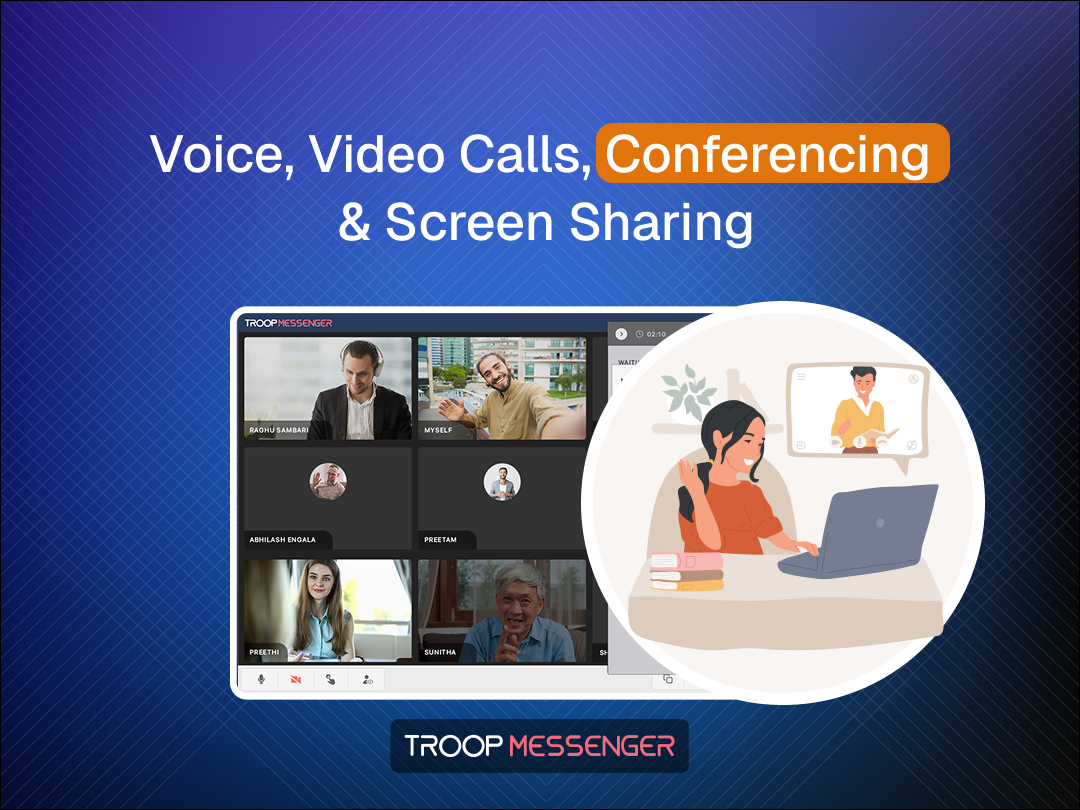
Premium includes one-to-one video calling, while Enterprise adds group calling, unlimited video conferencing and remote screen sharing. Screen sharing is more capable than simply broadcasting a desktop because the presenter can select an entire screen, an application window or a browser window.
This is useful for remote troubleshooting, presentations, onboarding and reviewing work. Enterprise users can also use screen sharing during group calls, which makes the feature considerably more practical for distributed teams.
Features You Will Not Find in Every Team Messenger
One of Troop Messenger’s more unusual features is Burnout, a timed confidential chat. A user can initiate a private conversation with a predefined timer, after which the conversation is automatically deleted. Administrators can control whether employees are allowed to use the feature.
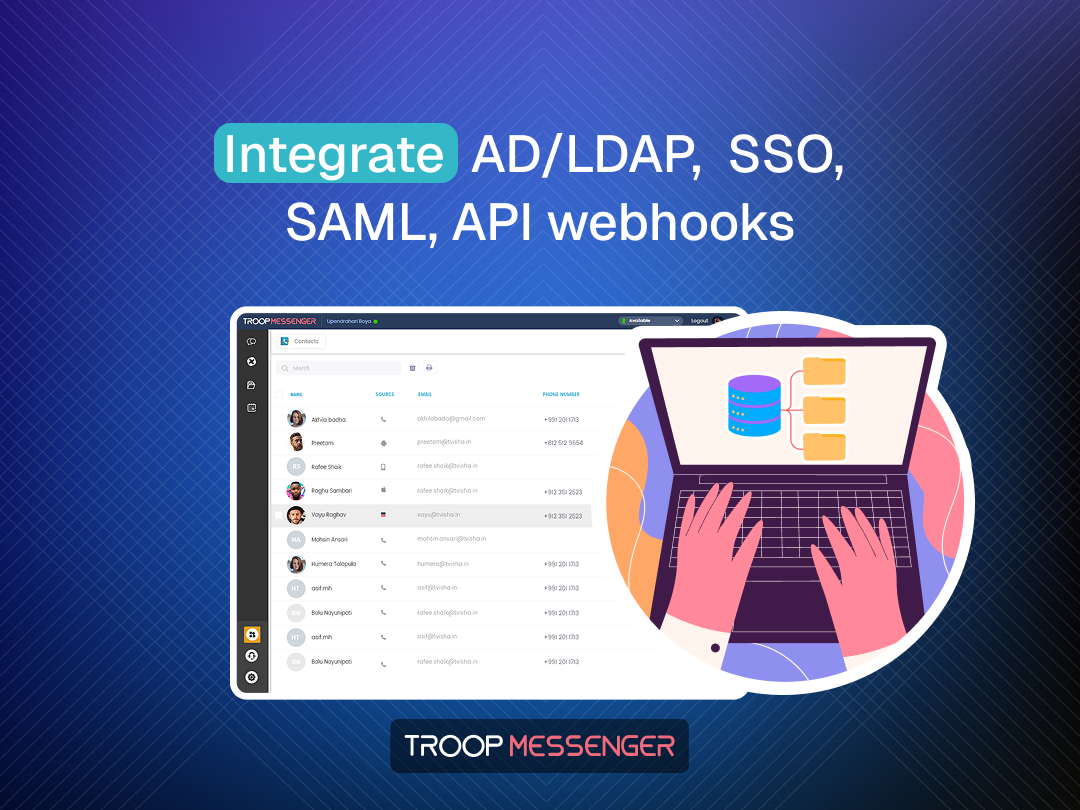
There are also features such as Forkout for broadcasting messages, Respond Later, advanced search, role-based controls, LDAP/Active Directory/SSO support and integrations with Dropbox and Google Drive on higher plans.
Troop Messenger Pricing: Which Plan Makes Sense?
The current pricing structure is unusually aggressive for a business communication platform. The main SaaS tiers are Free, Premium, Enterprise and Superior.
| Plan |
Current listed price |
Storage |
Best suited for |
| Free |
$0/user/month |
50GB |
Small teams testing the platform |
| Premium |
$2.50/user/month |
150GB |
Small and growing teams |
| Enterprise |
$5/user/month |
1TB |
Teams needing calls, screen sharing and advanced controls |
| Superior |
$9/user/month |
Listed as higher-tier plan |
Large organisations and advanced deployment needs |
The Troop Messenger review verdict on pricing is straightforward: Premium is the value option if your requirements are mostly messaging, file sharing and one-to-one communication. Enterprise is more compelling for remote organisations because group calling, screen sharing, SSO/Active Directory support, role-based administration and other advanced capabilities enter the picture.
There is also an on-premises route for organisations that do not want the vendor to host their entire collaboration environment. Troop Messenger describes this model as running on the organisation’s own infrastructure, with options for air-gapped environments and greater data ownership.
Advantages and Disadvantages
Where Troop Messenger Performs Well
- Low entry price: Starting at $2.50 per user per month makes it accessible to smaller businesses that still want business-grade communication features.
- Remote-work functionality: Messaging, audio/video calls, screen sharing and file sharing are combined instead of being spread across multiple applications.
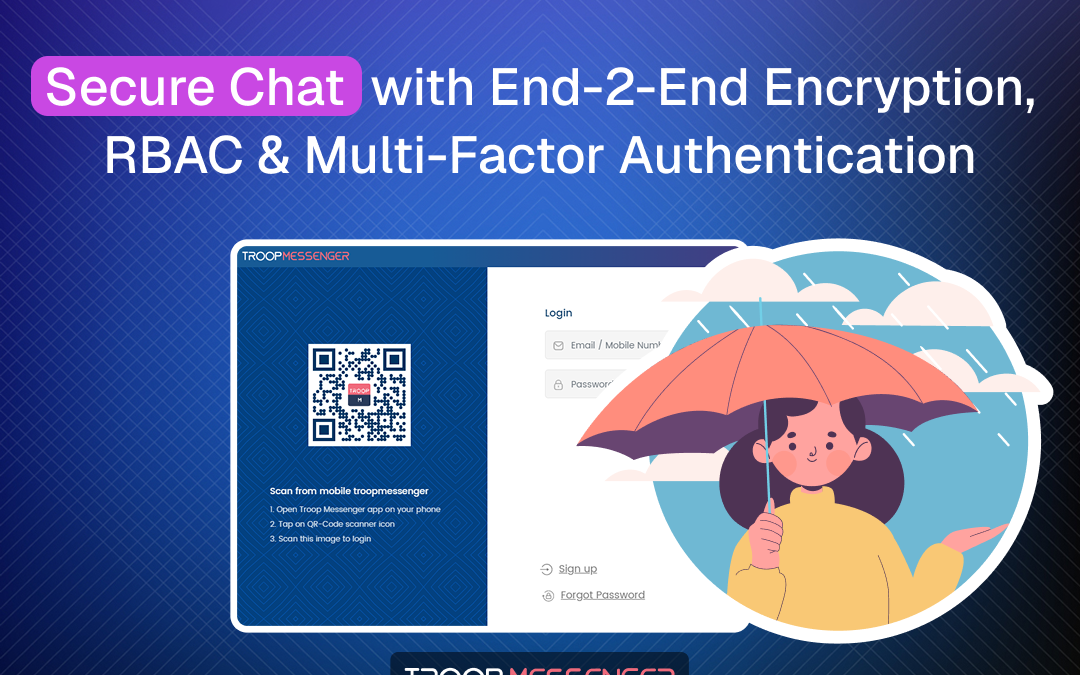
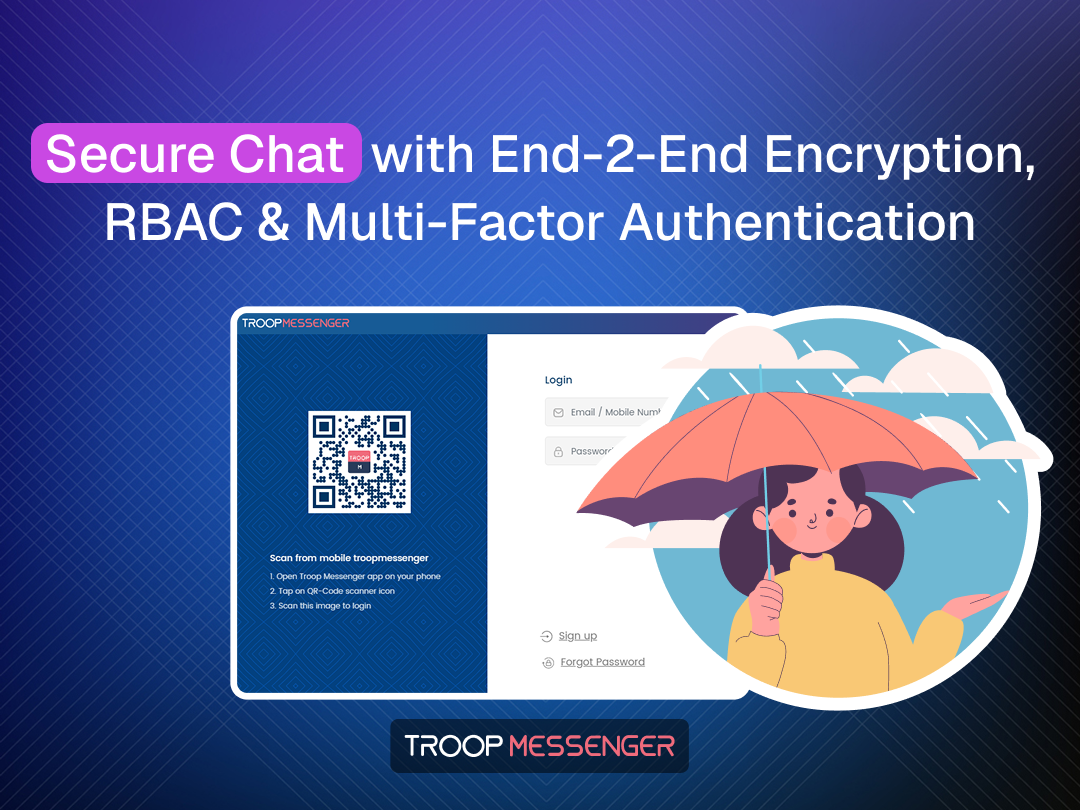
- Security controls: The platform supports end-to-end encryption, MFA, role-based controls and enterprise directory integrations. Higher-security deployments can also use on-premises infrastructure.
- Strong administration: Admins can control feature access, user roles and certain communication features. This matters more to businesses than it does to casual group-chat users.
- Unusual privacy tools: Burnout is a genuinely differentiated feature for conversations that should not remain permanently available.
Where It Falls Short
The biggest weakness is the integration ecosystem.
- Troop Messenger supports useful integrations, but it does not have the same breadth of third-party apps and workplace integrations associated with platforms such as Slack or Microsoft Teams.
- Its own recent comparison material acknowledges this limitation.
The product can also feel more feature-heavy than polished.
- A team that only wants simple messaging may find the large collection of business controls unnecessary.
- Mobile and user-experience polish can also be a consideration for teams accustomed to consumer-grade messaging applications.
In other words, Troop Messenger is more interesting when communication needs to be controlled and managed, not simply convenient.
This is where the Troop Messenger review becomes more positive. A distributed company can use it for daily chats, project groups, document sharing, meetings, screen demonstrations and internal communication without necessarily adding separate tools for every task.
It is particularly attractive for organisations where security, administration or data ownership matters. The availability of SaaS, on-premises deployment, LDAP/SSO and air-gapped options gives it a different positioning from lightweight team-chat applications.
For a five-person startup that lives inside Google Workspace, Slack and dozens of SaaS integrations, another platform may not add much value. But for a company that wants a more self-contained communication environment, the calculation changes.
Final Verdict
The Troop Messenger review verdict is that this is not simply a cheaper Slack alternative. Its real selling point is the combination of messaging, calling, screen sharing, administration and security at a relatively low per-user cost.
Premium is the sensible starting point for basic team communication. Enterprise is the tier worth considering for serious remote collaboration, particularly if screen sharing, group meetings, access controls and directory integration are important. Organisations with strict data-control requirements should investigate the on-premises options rather than judging Troop Messenger only as a SaaS chat application.
Overall, Troop Messenger makes the most sense for teams that want communication plus control, rather than communication alone.
Troop Messenger Review: FAQs
- Is Troop Messenger free?
Yes. Troop Messenger currently lists a Free plan at $0 per user per month, with features including one-to-one messaging, unlimited group chats, audio calling, file sharing, search and 50GB storage.
- Does Troop Messenger support screen sharing?
Yes. Remote screen sharing is available in Enterprise and above. Users can share an entire desktop, application window or browser window, including during group audio/video calls.
- Is Troop Messenger suitable for large organisations?
It can be. Its higher tiers provide features such as role-based access controls, LDAP/Active Directory/SSO, large storage allocations, advanced administration and on-premises deployment options. These features make it more suitable for organisations with stricter communication and security requirements than a basic chat application.
Also Read: How Money Transfer Fees Really Work (and How to Pay Less)