by parth@bidkinetic.com | Oct 6, 2026 | Business
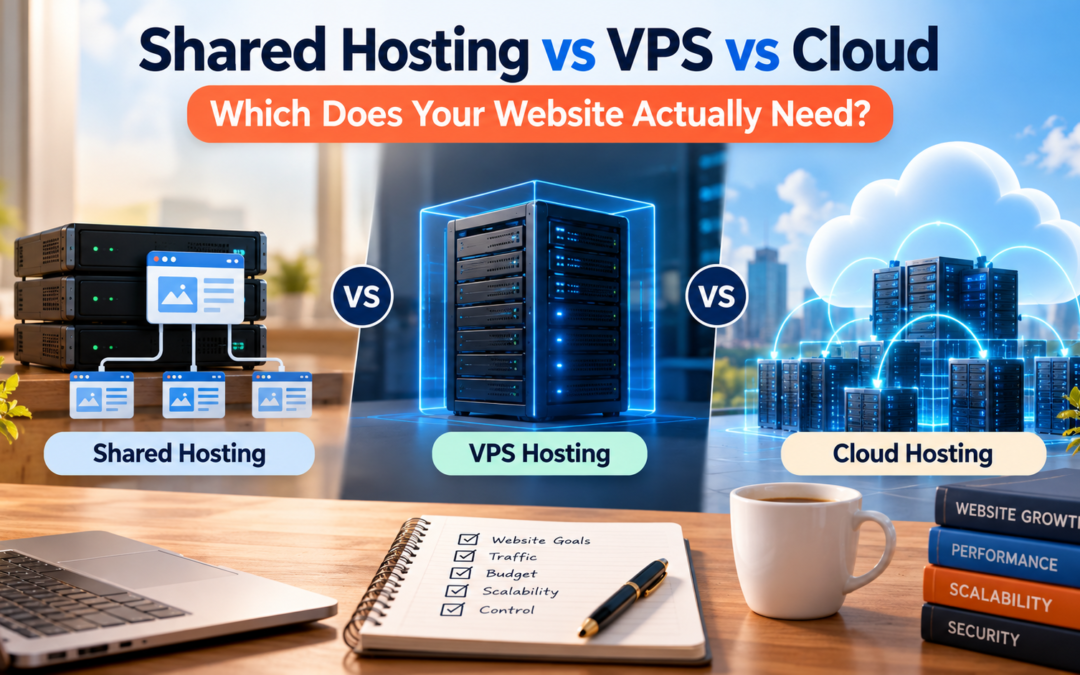
Choosing web hosting is no longer simply a question of finding the cheapest monthly plan. The type of server environment affects how much traffic a website can handle, how much control the owner gets, how easily resources can be increased, and how much technical work is involved. The shared hosting vs VPS vs cloud decision becomes particularly important as a website moves from a basic brochure site to an online store, content-heavy platform, SaaS application, or high-traffic business website.
The scale of today’s web also puts the decision into perspective. As of October 2026, WordPress alone is used by 40.1% of all websites, representing 58.6% of websites whose content management system is known, according to W3Techs. Hosting requirements among those sites can be dramatically different. A small local business website may work perfectly well on shared hosting, while an ecommerce store or application with unpredictable traffic may need dedicated resources or cloud infrastructure.
The right choice therefore isn’t necessarily the most powerful option. It is the hosting environment that provides enough resources and control without making the website unnecessarily expensive or complicated.
What Is Shared Hosting?
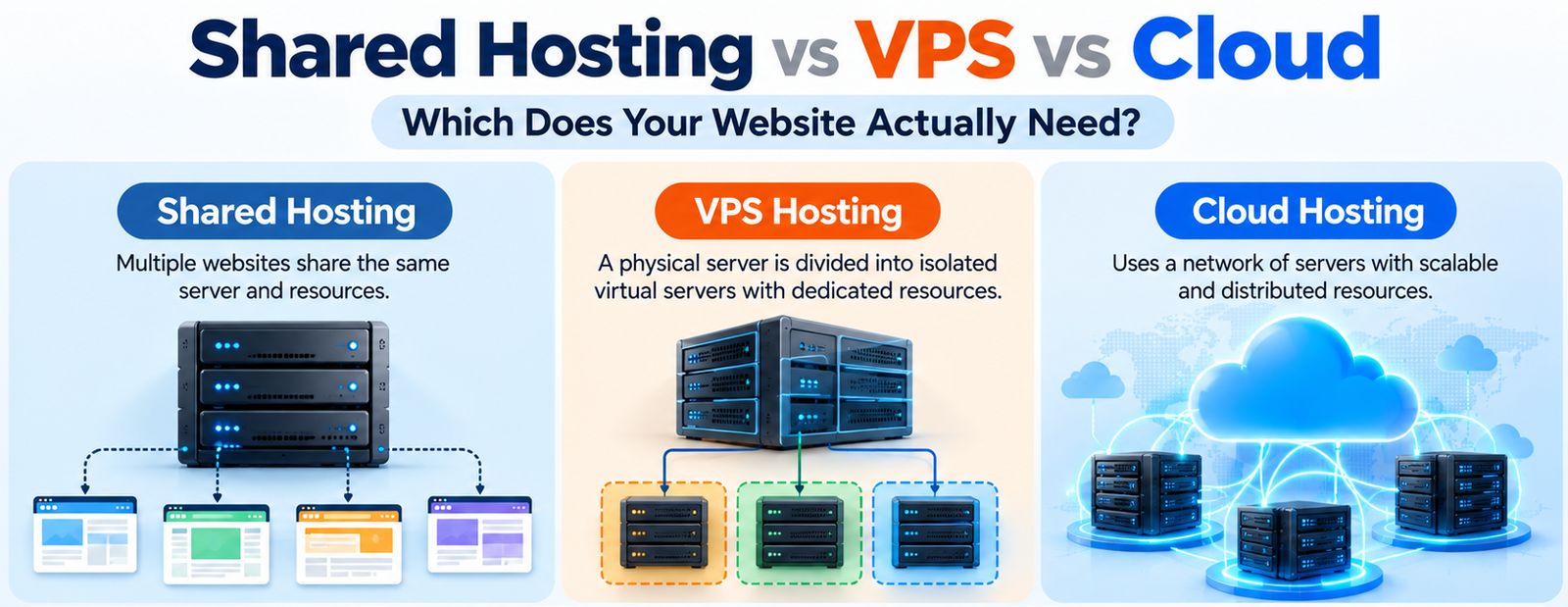
Shared hosting places multiple websites on the same physical server. CPU, RAM, storage and other server resources are shared between accounts, while the hosting company generally handles server maintenance and much of the technical infrastructure.
This is why shared hosting remains popular for beginners. The setup is straightforward, costs are low, and users usually don’t need to manage operating systems, server security or hardware.
It works particularly well for:
- Personal blogs
- Portfolio websites
- Small company websites
- Local businesses
- Basic WordPress sites
- Websites with predictable, modest traffic
The limitation is resource contention. If another website on the same server experiences a significant traffic spike, performance can potentially be affected. Shared hosting also provides considerably less server-level control than VPS hosting.
What Is VPS Hosting?
A Virtual Private Server divides a physical server into isolated virtual environments. Each VPS receives allocated resources and operates more like an independent server, giving the customer substantially more control than shared hosting. Root access is commonly available, depending on the provider and plan.
That makes VPS hosting a logical middle ground.
A growing website may move to VPS when shared hosting starts creating resource limitations, but the business does not yet need the complexity or architecture of a larger cloud deployment.
VPS is particularly suitable for:
- Growing ecommerce websites
- High-traffic WordPress sites
- SaaS applications
- Custom web applications
- Development environments
- Websites requiring specific server software
The trade-off is technical responsibility. An unmanaged VPS can require knowledge of Linux, security, updates, backups, networking and server configuration. Managed VPS plans reduce that workload but generally cost more.
What Is Cloud Hosting?
Cloud hosting uses virtualized infrastructure that can draw resources from a broader pool of interconnected servers. Depending on the architecture, resources can be increased or reduced as demand changes, while distributed infrastructure can provide greater redundancy than a single-server setup.
This makes cloud hosting particularly attractive when traffic isn’t predictable.
For example, an ecommerce website might receive normal traffic most of the year but experience major spikes during a sale. A cloud environment can provide considerably more flexibility than a fixed-capacity hosting setup.
Cloud hosting is commonly suited to:
- Large ecommerce stores
- SaaS platforms
- Applications with variable traffic
- High-growth websites
- Businesses serving international audiences
- Applications requiring high availability
However, “cloud” does not automatically mean better. Cloud infrastructure can involve additional configuration, monitoring and usage-based charges. Some cloud platforms also have complicated billing structures involving compute, storage, bandwidth and other services. DigitalOcean specifically recommends considering base pricing, data-transfer costs and additional services when evaluating cloud costs.
Shared Hosting vs VPS vs Cloud: The Real Difference
| Factor |
Shared Hosting |
VPS Hosting |
Cloud Hosting |
| Cost |
Lowest |
Medium |
Varies |
| Resources |
Shared |
Allocated to VPS |
Flexible/distributed |
| Performance |
Good for smaller sites |
More predictable |
Strong and scalable |
| Scalability |
Limited |
Usually requires upgrade |
High |
| Control |
Low |
High |
High |
| Technical skill |
Low |
Medium to high |
Medium to high |
| Traffic spikes |
Less suitable |
Better |
Best suited |
| Maintenance |
Mostly managed |
Depends on plan |
Depends on provider |
| Best for |
Small websites |
Growing websites |
High-growth/variable workloads |
Which Hosting Type Should You Choose?
For a new website, shared hosting is usually the sensible starting point. Paying for cloud infrastructure before the site has meaningful traffic simply adds cost and complexity without necessarily improving the visitor experience.
VPS becomes more compelling when resource limits, custom software requirements or increased traffic make shared hosting restrictive. It gives the owner more predictable resources and significantly greater control.
Cloud hosting makes the most sense when scalability and availability are genuine requirements rather than buzzwords. If traffic fluctuates substantially or the application needs infrastructure that can expand quickly, cloud architecture can justify its additional complexity.
That is the practical takeaway from the shared hosting vs VPS vs cloud debate: choose according to the website’s workload, not the marketing label attached to the hosting plan.
Cost Isn’t the Only Number to Compare
The advertised monthly price tells only part of the story. Before choosing a plan, check renewal rates, included backups, SSL, bandwidth policies, storage type, support, migration assistance and whether resources are genuinely allocated or subject to usage limits.
For VPS and cloud hosting, also examine whether server management is included. A cheap unmanaged server can become expensive in staff time if nobody on the team knows how to maintain it.
Security and backups deserve particular attention. A hosting provider may advertise automated backups, but the retention period, restoration process and frequency can vary considerably.
FAQs
1. Is shared hosting enough for a small business website?
Usually, yes. A basic company website with relatively predictable traffic generally does not need VPS or cloud infrastructure.
2. Is cloud hosting faster than VPS?
Not automatically. Performance depends on the provider, hardware, configuration, application and workload. Cloud’s major advantage is flexibility and scalability rather than a guaranteed speed increase.
3. Is VPS more secure than shared hosting?
VPS provides stronger resource and environment isolation, but security still depends heavily on configuration, updates, access controls and server management.
by parth@bidkinetic.com | Oct 6, 2026 | Travel
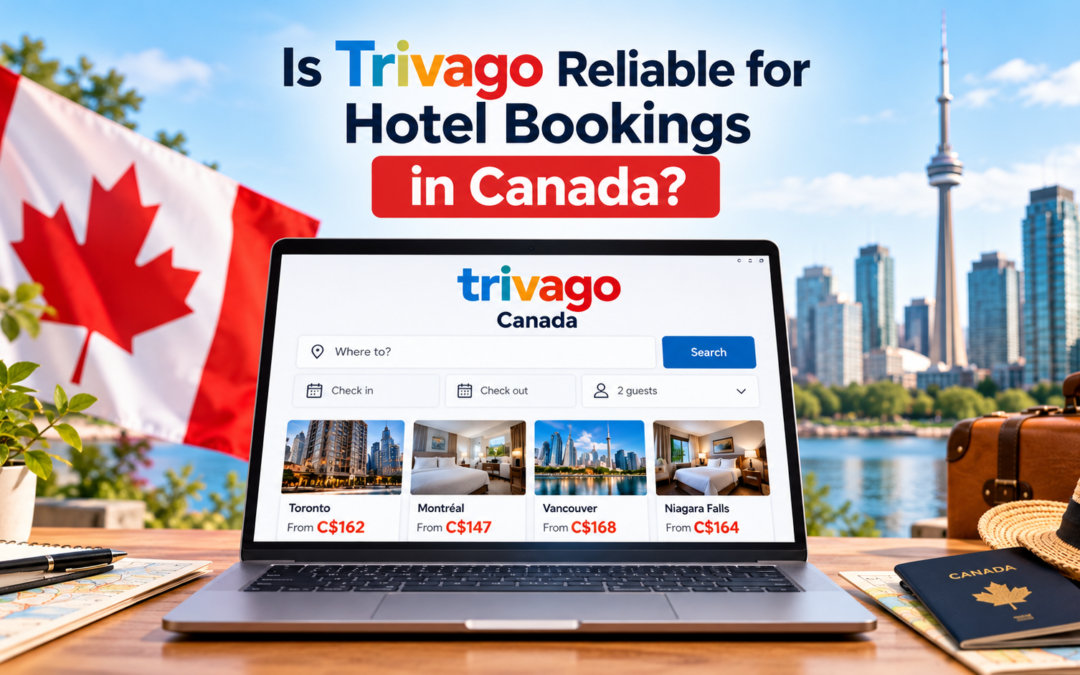
When comparing hotel prices across Canada, the biggest challenge is not finding hotels but figuring out whether the rate being advertised is genuinely competitive. Trivago Canada addresses that problem by comparing hotel offers from hundreds of booking sites rather than functioning like a traditional online travel agency. On its Canadian site, current examples include more than 2,000 hotels in Toronto, over 900 in Montréal, more than 500 in Vancouver, and hundreds more in destinations such as Québec City, Niagara Falls, Ottawa and Calgary. The displayed average prices also vary substantially by destination, with current three-star examples ranging from about C$164 per night in Niagara Falls to C$400 in Toronto. (October 2026)
That makes Trivago useful as a research tool, but reliability depends on understanding what happens after clicking the hotel deal.
How Does Trivago Canada Actually Work?
Trivago is a metasearch engine, not simply another hotel booking website. It gathers accommodation offers from online travel agencies, hotel chains and independent properties, then puts their prices side by side.
The important distinction is that the booking contract is generally with the hotel or booking provider shown with the offer. Trivago itself does not own the hotel room or set the accommodation’s price.
This matters when something goes wrong. If a reservation needs to be cancelled, modified or investigated, the booking site that processed the reservation is normally the first place to contact.
Is Trivago Canada Legitimate?
Yes. Trivago is a legitimate hotel comparison platform, and it has operated internationally for years. Its Canadian platform is designed specifically for travellers searching accommodation prices in Canada and abroad.
There is also a useful layer of screening behind the offers. Trivago says it conducts background checks on booking sites before displaying their rates and continuously monitors their performance.
That does not mean every booking experience will be perfect. The distinction is important: Trivago can screen and compare providers, but it cannot completely control the service delivered by every hotel or third-party booking company.
Are Trivago Prices Accurate?

Source: Trivago (October 2026)
This is where travellers need to pay attention.
- Trivago says prices displayed on its platform include fees but generally exclude government taxes such as VAT or city taxes unless otherwise stated.
- Prices are normally shown per room, per night.
- The company also warns that a price can sometimes change after the user is redirected to the booking site.
- Its terms also state that provider information and prices may not always be updated in real time.
Therefore, the price displayed in search results should be treated as a strong comparison point rather than an absolute guarantee until the final booking page is checked.
Before paying, compare:
- Final total price
- Taxes and mandatory fees
- Room type
- Number of guests
- Cancellation conditions
- Breakfast or other inclusions
- Payment terms
- Currency
| Factor |
What Trivago Offers |
What Travellers Should Check |
| Hotel prices |
Compares offers from many sites |
Final price at checkout |
| Hotel selection |
Large range of Canadian properties |
Availability for exact dates |
| Reviews |
Aggregated hotel reviews |
Recent guest feedback |
| Price alerts |
Available through the app |
Whether the lower rate has restrictions |
| Booking |
Redirects to provider or facilitates booking where available |
Who actually processes the reservation |
| Cancellation |
Depends on selected offer |
Provider’s cancellation policy |
| Customer support |
Limited for third-party bookings |
Contact the booking provider directly |
Where Trivago Canada Is Particularly Useful
The biggest advantage of Trivago Canada is comparison.
Suppose the same hotel is available through several booking providers. Instead of opening every website individually, Trivago can put the available rates together. This is particularly useful in expensive markets such as Toronto or Vancouver, where even a modest difference per night can become significant over a multi-night stay.
The platform also provides filters and map-based searching, while its app can send notifications when prices drop. Trivago says its app compares millions of hotels from hundreds of booking sites.
For travellers who are flexible about where they stay, these tools can be more valuable than simply searching for the hotel with the highest rating.
What About Trivago’s Best Price Guarantee?

Source: Trivago (October 2026)
Trivago currently offers a Best Price Guarantee for qualifying facilitated bookings made by registered users through the Canadian website or app.
If an eligible traveller finds the same deal publicly available for less on another booking site within 24 hours, Trivago says it can beat the price by C$1 and refund the difference, subject to its conditions. The competing offer must match important details such as the accommodation, fees and taxes, and several exclusions apply.
It is therefore useful protection, but it should not be interpreted as a blanket guarantee that every hotel rate found anywhere online will be beaten.
What Do Customer Reviews Say?
Independent customer feedback is mixed, which is worth considering before booking.
Recent Trustpilot reviews for Trivago.com include positive comments about the ease of comparing prices and finding competitive deals, while complaints include difficulties with customer service, changing prices and reservation-related problems. The Canadian-specific Trivago Trustpilot profile currently has six reviews (October 2026), so it is too small a sample to draw a meaningful Canada-specific conclusion.
This reinforces the main point: the reliability of a booking depends partly on which provider ultimately handles the reservation.
Is Trivago Reliable for Canadian Hotels?
For hotel research and price comparison, Trivago Canada is a reliable and useful platform. Its strength is giving travellers a quick view of competing hotel offers instead of requiring them to search multiple booking sites manually.
The main caution is that Trivago is not necessarily the party responsible for your reservation. Once you select an offer, the booking provider’s terms, cancellation policy and customer service become important.
For the safest experience, compare the final price, check the provider, read the cancellation conditions and save the confirmation immediately after booking.
FAQs
1. Does Trivago book hotels directly?
Usually, Trivago connects travellers with the hotel or booking provider offering the selected rate. Some facilitated booking options may be available directly through its platform.
2. Can Trivago guarantee the lowest hotel price?
Not every price is guaranteed to be the lowest. However, qualifying Canadian facilitated bookings may be covered by its Best Price Guarantee, subject to specific conditions.
3. Who should be contacted if there is a booking problem?
For third-party reservations, the booking provider shown on the confirmation is generally the appropriate first contact because it manages the reservation.
Also Read: Traveloka Review: Is It Worth Using for Booking Flights and Hotels?
by parth@bidkinetic.com | Oct 5, 2026 | Tech
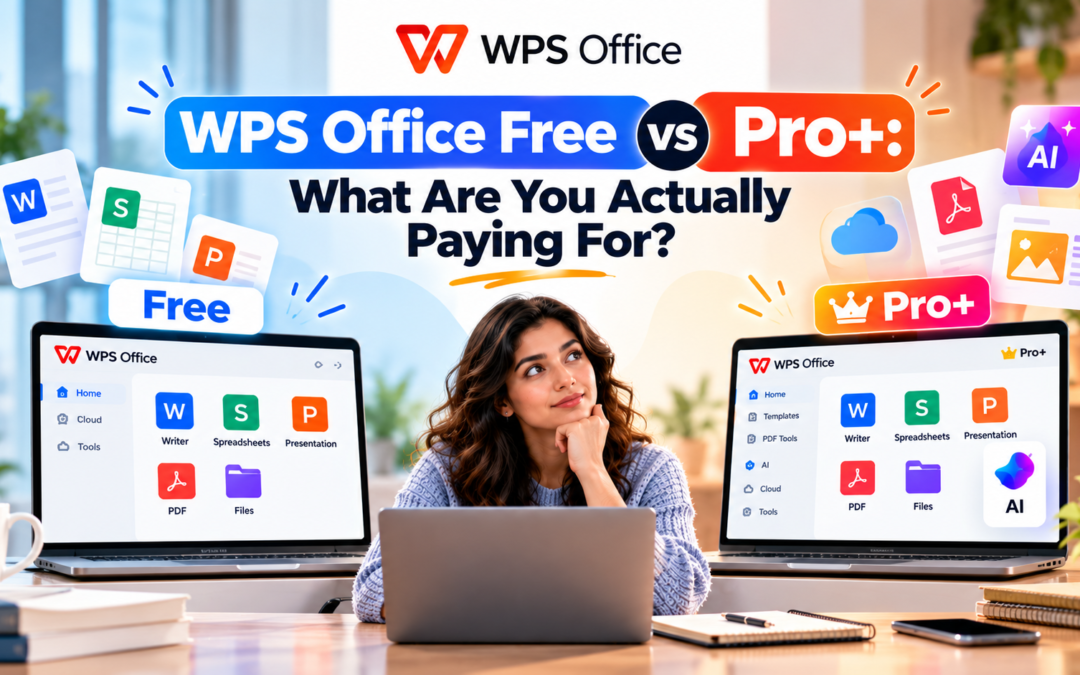
The WPS Office Free vs Pro+ comparison comes down to a fairly simple question: do you need an everyday office suite, or do you regularly work with PDFs, cloud storage, templates and AI tools? WPS Office Standard is free and includes Writer, Spreadsheet, Presentation and basic PDF functionality, along with 1GB of cloud storage, support for 47 file formats and 46 languages. WPS Pro+ currently costs $69.99 per year, equivalent to $5.83 per month when billed annually, and expands that package with full PDF editing and conversion, 20GB of cloud storage, unlimited templates, OCR, electronic signatures, an ad-free experience and AI tools with daily usage limits. (October 2026)
That makes the WPS Office Free vs Pro+ decision less about whether the free version is usable. It is. The real question is whether the premium features remove enough restrictions from your particular workflow to justify the annual subscription.
What You Get With WPS Office Free
WPS Office Free is not a stripped-down viewer. The core productivity applications remain available without a subscription.
You can use Writer for documents, Spreadsheet for data and calculations, Presentation for slides and PDF for basic PDF functions. WPS also supports common Microsoft Office formats, making it possible to open and work with DOCX, XLSX and PPTX files without purchasing Microsoft 365 for everyday tasks.
The free plan currently includes:
- Writer, Spreadsheet and Presentation
- Free PDF reader
- Basic PDF features
- 1GB cloud storage
- 47 supported file formats
- 46 languages
- Limited template downloads
- Core WPS AI functionality with usage limitations
For someone mainly writing reports, editing spreadsheets, preparing presentations and opening Office documents, this is a substantial amount of functionality for $0.
The trade-offs become more noticeable when PDFs or cloud storage become part of the daily workflow.
What Pro+ Actually Adds

Source: WPS
The WPS Office Free vs Pro+ difference becomes clearer once the advanced features are separated from the basic office applications.
- Pro+ adds full PDF editing and conversion, including converting PDFs to Word, Excel and PowerPoint.
- It also provides image and text editing within PDFs, advanced OCR, electronic signatures and additional PDF tools.
- Cloud storage jumps from 1GB to 20GB, while template downloads become unlimited. Pro+ also removes advertising.
The AI component is another important part of the paid plan.
- WPS integrates AI into Writer, Spreadsheet, Presentation and PDF rather than treating it as a separate application.
- Depending on the feature, it can draft or rewrite documents, generate spreadsheet formulas, create presentations from prompts and summarize or interact with PDF documents.
However, “Pro+” does not mean unlimited AI usage. WPS states that its AI features have daily usage limits, after which access pauses until the next day.
WPS Office Free vs Pro+: Feature Breakdown
| Feature |
WPS Office Free |
WPS Pro+ |
| Writer |
Yes |
Yes |
| Spreadsheet |
Yes |
Yes |
| Presentation |
Yes |
Yes |
| PDF reader |
Yes |
Yes |
| Advanced PDF editing |
Limited |
Yes |
| PDF conversion |
Limited |
Full tools |
| OCR |
Limited/feature dependent |
Advanced |
| E-signature |
Limited |
Full feature |
| Cloud storage |
1GB |
20GB |
| Templates |
Limited downloads |
Unlimited |
| WPS AI |
Limited |
Included with daily limits |
| Ads |
Yes |
No |
| Microsoft Office formats |
Supported |
Supported |
| Annual price |
Free |
$69.99/year |
The important detail is that you are not paying to unlock Word, Excel and PowerPoint-style applications themselves. Those core tools are already available in the free version. The subscription primarily pays for advanced PDF capabilities, storage, templates, an ad-free experience and broader access to premium features.
The PDF Difference Is Probably the Biggest One
For occasional PDF reading, the free version may be sufficient. For regular PDF work, the calculation changes.
Someone who frequently receives contracts, reports, scanned documents or forms may need to edit PDF text, convert files between formats, extract information with OCR or add electronic signatures. Those are precisely the kinds of functions WPS places behind its premium offering.
This is where Pro+ can replace the need for a separate PDF application.
For example, a small business that normally uses one application for Word documents, another for spreadsheets, a third for presentations and another for PDF editing could consolidate several of those tasks inside WPS.
Is 20GB of Cloud Storage Enough?
The free plan’s 1GB is fine for lightweight document synchronization.
It becomes restrictive if WPS is being used as a primary document workspace across a laptop, phone and tablet. Pro+ raises the allowance to 20GB per user, which provides considerably more room for documents, presentations and PDFs.
Still, 20GB should not be confused with a full cloud-storage replacement for services designed around large photo, video or archive libraries.
What About WPS AI?

Source: WPS
AI is one of the more interesting reasons to consider Pro+, but it shouldn’t automatically be treated as the reason everyone needs the upgrade.
WPS AI is built directly into the office applications.
- In Writer, it can help draft, rewrite, summarize and translate.
- In Spreadsheet, it can generate formulas and assist with data analysis.
- Presentation can generate slide decks from prompts, while the PDF tools can summarize and answer questions about documents.
That native integration is useful because the AI operates inside the document workflow instead of requiring constant copy-and-paste between an office application and a separate chatbot.
The limitation is usage. Pro+ includes AI, but WPS still applies daily limits.
Who Should Stay With Free?
The free version makes sense for students, casual users and anyone who mainly needs basic document, spreadsheet and presentation editing.
It is particularly difficult to justify paying simply to write a Word-compatible document or create a PowerPoint-compatible presentation when those core functions already exist in the free version.
If PDFs are mostly opened and read rather than edited, 1GB of cloud storage is sufficient for a modest document collection, and ads are not a major annoyance, Free can cover a lot.
Who Gets More From Pro+?
The subscription becomes more relevant for professionals and small businesses that handle PDFs frequently.
It can also make sense for users who need more cloud storage, download templates regularly, want an ad-free workspace or use WPS AI throughout their working day.
The annual price works out to about $5.83 per month, but the useful comparison is not simply monthly cost. It is how many separate tools or paid features WPS can replace in your workflow.
That is the real calculation behind the WPS Office Free vs Pro+ question.
Final Take
WPS has deliberately kept its core office suite accessible for free while putting more specialized productivity features behind Pro+. The free version is capable enough for everyday documents, spreadsheets, presentations and basic PDF work.
Pro+ is primarily a convenience and advanced-workflow upgrade. Full PDF tools, 20GB storage, unlimited templates, OCR, e-signatures, no advertising and expanded AI access are the features you’re actually paying for.
For occasional office work, Free can be enough. For someone whose day involves PDFs, document conversion, cloud files and AI-assisted productivity, the paid plan addresses much more specific workflow needs.
The WPS Office Free vs Pro+ choice therefore isn’t really about getting a “better” office suite. It is about whether the premium tools solve problems you encounter often enough to justify $69.99 a year.
FAQs
1. How much does WPS Pro+ cost?
The current listed price is $69.99 per year, equivalent to $5.83 per month when billed annually.
2. Does WPS Pro+ include unlimited AI?
No. WPS states that Pro+ AI features have daily usage limits. Once the applicable limit is reached, those AI tools pause until the next day.
3. Can you use WPS Office without Microsoft 365?
Yes. WPS Office provides its own Writer, Spreadsheet and Presentation applications and can open common Microsoft Office file formats
Also Read: Termly Review: Is It Worth Using for Website Privacy Compliance?
by parth@bidkinetic.com | Oct 5, 2026 | Business
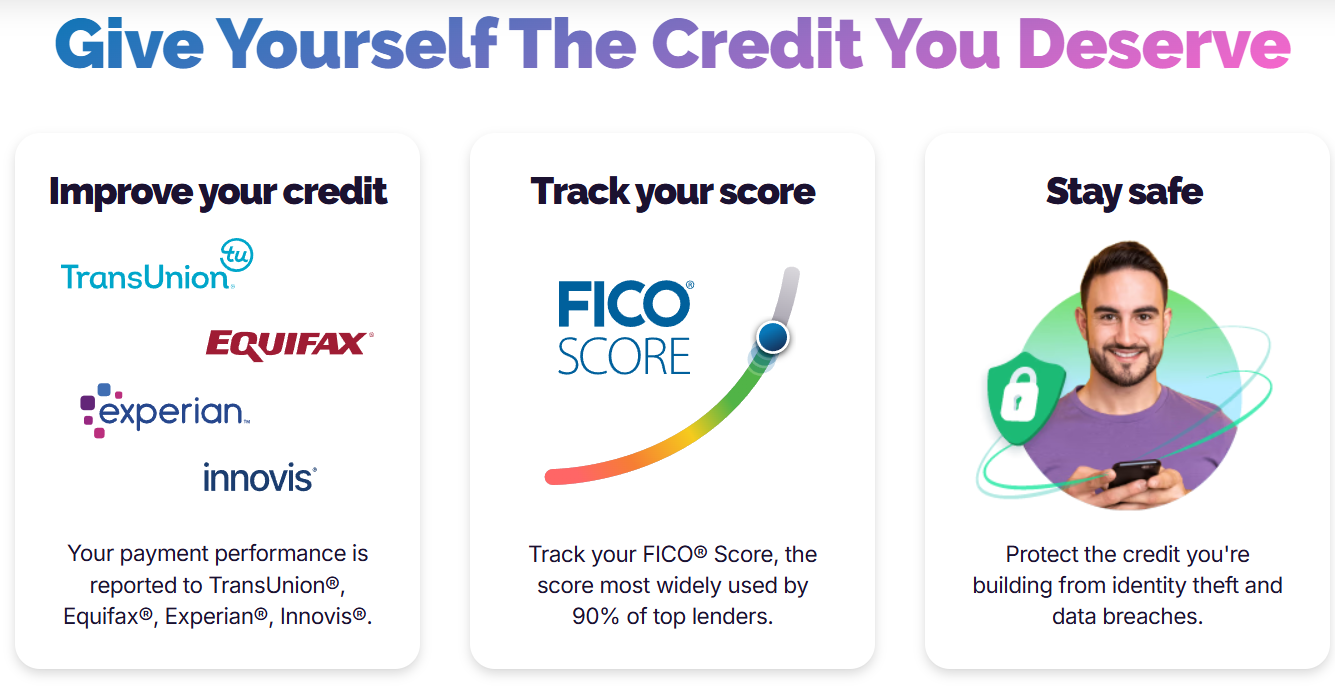
The Kovo Credit Builder is designed for people who want to establish or strengthen their U.S. credit history without taking out a traditional loan or opening a conventional credit card. Kovo currently charges $10 per month for 24 months, reports payment activity to TransUnion, Equifax, Experian and Innovis, and says there is no hard credit inquiry, interest or additional fee for its Installment Credit Builder. It also bundles credit monitoring, identity protection and access to rewards.
That makes the product somewhat different from a traditional credit-builder loan. With a conventional credit-builder loan, the lender typically holds the borrowed amount in a savings account while the borrower makes payments and receives the funds after completing the loan. Kovo’s basic proposition is instead centered on creating a reported payment history through a $10 monthly installment plan.
How Does Kovo Credit Builder Work?
The basic Installment Credit Builder runs for 24 months at $10 per month, making the scheduled payments total $240 over the full term.
After approval, Kovo reports the account and payment performance to all four bureaus it lists: TransUnion, Equifax, Experian and Innovis. Kovo says there is no hard credit pull when applying and opening the account, although approval is subject to background verification and income qualification.
The process is essentially:
Apply → Get approved → Make $10 monthly payments → Payment history is reported → Monitor credit progress
The payment history is the key component. Kovo says on-time payments can positively affect credit, while late or missed payments can have a negative impact. It also explicitly states that a particular credit-score increase is not guaranteed because scores depend on information from multiple financial accounts and other factors.
What Do You Get for $10 a Month?
The Kovo Credit Builder isn’t just a payment-reporting account. The company says members also receive credit monitoring and identity protection during the credit-building period. Its current product information also includes rewards and credit boosts for eligible customers.
Here’s how the core offering looks:
| Feature |
Kovo Installment Credit Builder |
| Monthly cost |
$10 |
| Standard term |
24 months |
| Total scheduled payments |
$240 |
| Hard credit inquiry |
No |
| Interest |
None |
| Additional fees |
Kovo says none |
| Credit bureaus |
TransUnion, Equifax, Experian, Innovis |
| Credit monitoring |
Included |
| Identity protection |
Included |
| Rewards |
Available to eligible customers |
| Credit boosts |
Available to eligible customers |
| Availability |
U.S., including all 50 states and D.C. |
The absence of a hard inquiry is useful for someone who is concerned about adding another inquiry to a thin credit file. However, no hard pull doesn’t mean no credit consequences. The account itself becomes part of the reported credit history, and payment behavior matters.
Does Kovo Actually Improve Your Credit Score?

Source: KOVO
Potentially, but there is no universal number of points that Kovo can add.
- Credit scores are calculated from information in credit reports, and different scoring models can weigh information differently.
- Kovo itself warns that individual results vary and does not guarantee a score increase.
- The strongest case for a product like this is someone who has little or no established credit history and needs an account that can contribute positive payment history.
It is also important to keep expectations realistic.
- Opening Kovo does not erase existing late payments, collections or other negative information.
- A new account becomes one part of a broader credit profile.
And because late payments can work against you, the $10 monthly payment needs to be treated as a genuine financial obligation rather than a subscription that can be ignored.
Why Reporting to Four Bureaus Matters
Most consumers are familiar with the three major U.S. credit bureaus: Experian, Equifax and TransUnion. Kovo additionally reports to Innovis.
That broad reporting is one of the more distinctive parts of the product.
Still, reporting to four bureaus doesn’t mean every lender will use information from all four when evaluating an application. Different lenders and scoring models can use different credit-report sources.
The practical benefit is that Kovo is creating reported account activity across the bureaus it supports rather than limiting reporting to just one.
What Happens If You Miss a Kovo Payment?
This is one of the most important parts of the Kovo Credit Builder review. Kovo says late or non-payment can negatively affect your credit score.
That means the product shouldn’t be viewed as a risk-free way to generate positive credit history. The potential benefit comes from consistent payments, so someone who already struggles to keep up with recurring bills should consider whether another monthly obligation makes sense.
Kovo’s Help Center provides information about missed payments, automatic payments, payment methods, cancellation and early account closure.
Kovo’s Other Credit-Building Product
Source: KOVO
Kovo also offers a Revolving Credit Builder to eligible members. Unlike the $10 Installment Credit Builder, this is a revolving credit line that can be added by qualifying members. Kovo says both products report to four bureaus and include credit monitoring.
This distinction matters because installment and revolving accounts work differently in a credit profile. Someone considering Kovo should therefore look at the specific product being offered rather than treating every Kovo feature as the same type of account.
Rewards and Credit Boosts
Kovo has added incentives around its credit-building system. Its website currently advertises cash rewards of up to $1,225, including referral and other eligible rewards, and says eligible customers can unlock credit boosts after qualifying on-time payments.
These should be viewed as secondary benefits rather than the main reason to open the account. Eligibility requirements apply, and the advertised maximum isn’t the same thing as a guaranteed return for every member.
Is Kovo Worth Considering?
The Kovo Credit Builder is most relevant to people who need to establish or strengthen a credit profile and want a relatively straightforward monthly commitment.
Its clearest differentiators are the $10 monthly price, no hard inquiry, no stated interest or fees, four-bureau reporting, credit monitoring and identity protection.
The main limitation is equally straightforward: Kovo cannot guarantee how much your score will increase. Your broader credit history still matters, and missed payments can hurt rather than help.
At $10 a month, the financial commitment is relatively easy to understand: $240 over 24 months if every scheduled payment is made. Whether that cost makes sense depends on how much value you place on building reported payment history and the additional monitoring and protection features.
For anyone considering it, the most important step is to read the current terms before enrolling and make sure the monthly payment fits comfortably into the budget.
FAQs
1. How long does Kovo take to improve your credit?
There is no guaranteed timeframe or guaranteed number of points. Kovo states that results vary according to individual credit circumstances and other financial information.
2. Can Kovo hurt your credit?
Yes. Kovo states that late or non-payment can negatively affect your credit score.
3. Is Kovo available outside the United States?
No. Kovo says its service is currently available across all 50 U.S. states and the District of Columbia.
Also Read: Klover Review: Cash Advances Without Interest, What’s the Catch?
by parth@bidkinetic.com | Oct 5, 2026 | Business
PDFs remain one of the most widely used formats for contracts, invoices, applications, reports, forms, and business documents, but editing them can quickly become frustrating when a supposedly free tool adds a watermark at export or limits basic features behind a subscription. The best free PDF editors in 2026 are no longer limited to simple annotation. Several now support text editing, page management, signatures, OCR, conversions, forms, and document security without putting a branding mark on the finished file. PDFgear, for example, says its free editor has no watermarks, registration requirements, or usage limits, while PDF24 offers a completely free Windows desktop toolkit with no restrictions.
The important distinction is that “PDF editing” can mean very different things. Adding a text box to a PDF is easy. Changing the original text, preserving formatting, editing scanned documents, or rearranging complex layouts is a different task altogether. That is why this list focuses on the best free PDF editors that can produce a clean PDF without a forced watermark.
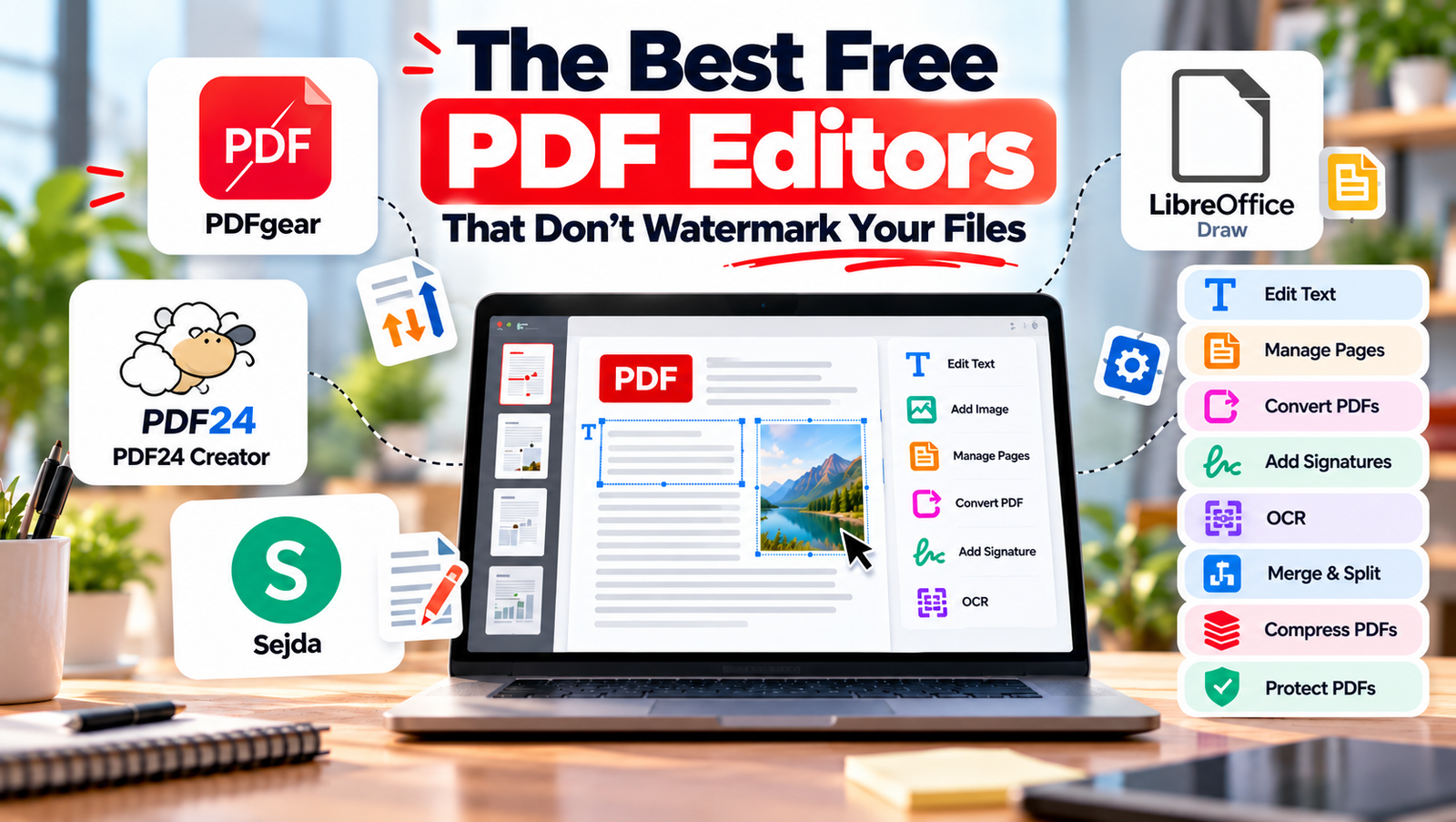
1. PDFgear: Best Overall Free PDF Editor
PDFgear is one of the strongest choices for users who want a genuinely free PDF editor rather than a trial version disguised as free software.
Its online editor allows users to add text, images, shapes, comments, signatures, highlights, and drawings, as well as reorder, rotate, copy, delete, and insert pages. Edited PDFs can be downloaded without a watermark. The online version supports files up to 100MB, while the desktop software offers more advanced editing and no stated file-size limit.
The desktop version is particularly useful when the job involves changing existing PDF text, rather than simply placing new text over it. It also includes OCR, conversion tools, forms, signatures, and AI-assisted PDF features.
Best for: Everyday editing, forms, text changes, conversions, and users who want an all-in-one option.
2. PDF24 Creator: Best for Unlimited Offline PDF Work
PDF24 Creator is particularly appealing to Windows users who do not want to upload sensitive documents to an online service.
The software is completely free for personal and commercial use and works offline, keeping files on the user’s computer. It can merge, split, rotate, extract, compress, convert, sign, OCR, protect, and modify PDFs. It also supports batch processing and PDF creation from Word, Excel, and image files.
This is where PDF24 differs from many browser-based editors. There is no daily task allowance on the desktop version, making it a practical choice for people who process PDFs regularly.
Best for: Windows users, business documents, bulk PDF tasks, and privacy-conscious workflows.
3. Sejda PDF Editor: Best for Quick Online Text Editing
Sejda is a good option when installing software is unnecessary, and the PDF needs a relatively straightforward edit in a browser.
Its editor can add and modify text, move or delete pages, highlight content, insert shapes, and add signatures. The free service does have restrictions: Sejda currently limits free users to three tasks per day on its desktop software and imposes size, page, and processing limits on online tasks.
The important part for this list is that Sejda’s free output does not carry a forced watermark. Its current pricing information explicitly states that free users receive watermark-free output.
Best for: Occasional browser-based editing when installation is not practical.
4. LibreOffice Draw: Best Open-Source Desktop Alternative
LibreOffice Draw is not marketed primarily as a PDF editor, but it can be surprisingly useful for editing PDF content.
- Draw lets users work with text and graphic objects and export documents directly to PDF. LibreOffice itself is a free, open-source office suite available across major desktop platforms.
It is most useful when the PDF has a relatively straightforward layout.
- Complex PDFs with unusual fonts, forms, layered graphics, or intricate formatting may not reproduce perfectly when opened and edited.
- There is also no commercial PDF-editor watermark being added simply because the document was exported through LibreOffice.
- Users have direct control over the PDF export settings, including security and other output options.
Best for: Desktop users who already use LibreOffice and want a free, open-source solution.
5. Stirling PDF: Best for Privacy and Self-Hosting
Stirling PDF is an interesting option for technical users, businesses, and organizations that want greater control over document processing.
It provides tools for PDF editing, annotations, OCR, redaction, signing, conversion, merging, splitting, compression, metadata management, and more. It can run locally, through desktop applications, or as a self-hosted service.
Its local-only desktop mode can process files on the user’s computer, while self-hosted installations allow organizations to keep processing within their own infrastructure.
Best for: Privacy-sensitive users, IT teams, developers, and organizations wanting self-hosted PDF workflows.
Best Free PDF Editors Compared
| PDF Editor |
Best For |
Watermark-Free |
Main Limitation |
| PDFgear |
Overall PDF editing |
Yes |
Online version has file-size limits |
| PDF24 Creator |
Offline Windows use |
Yes |
Windows desktop focus |
| Sejda |
Quick online editing |
Yes |
Free usage limits |
| LibreOffice Draw |
Open-source desktop editing |
Yes |
Complex PDFs may lose formatting |
| Stirling PDF |
Privacy and self-hosting |
Yes |
Better suited to technical users |
What Should You Choose?
- For most people, PDFgear is the easiest starting point. It combines a simple interface with capabilities that go well beyond adding comments or highlighting text. Its free, watermark-free export is also a major advantage.
- If privacy is the priority, PDF24 Creator is hard to overlook on Windows because documents can remain entirely offline.
- Sejda makes more sense when only occasional browser-based editing is needed. Its limitations are noticeable if several PDFs need processing every day.
- LibreOffice Draw is worth considering when an open-source desktop environment is preferred, while Stirling PDF stands out for people who need local or self-hosted processing.
The key is to look beyond the word free. Check whether the tool allows clean export, whether existing text can actually be edited, how large the file can be, whether OCR is included, and whether your documents leave your computer.
Best Free PDF Editors: FAQs
1. Which free PDF editor is best for editing existing text?
PDFgear is one of the strongest choices because its desktop application supports direct editing of existing PDF text while preserving formatting.
2. What is the best choice for confidential PDFs?
An offline or self-hosted editor is generally preferable when documents contain sensitive information. PDF24 Creator processes files locally, while Stirling PDF supports local and self-hosted deployment.
3. Can a free PDF editor replace Adobe Acrobat?
For many everyday tasks, yes. Editing text, adding annotations, signing, merging, splitting, converting, and managing pages can be handled by free tools. Professional publishing, advanced document workflows, and enterprise-specific features may still justify a paid solution.